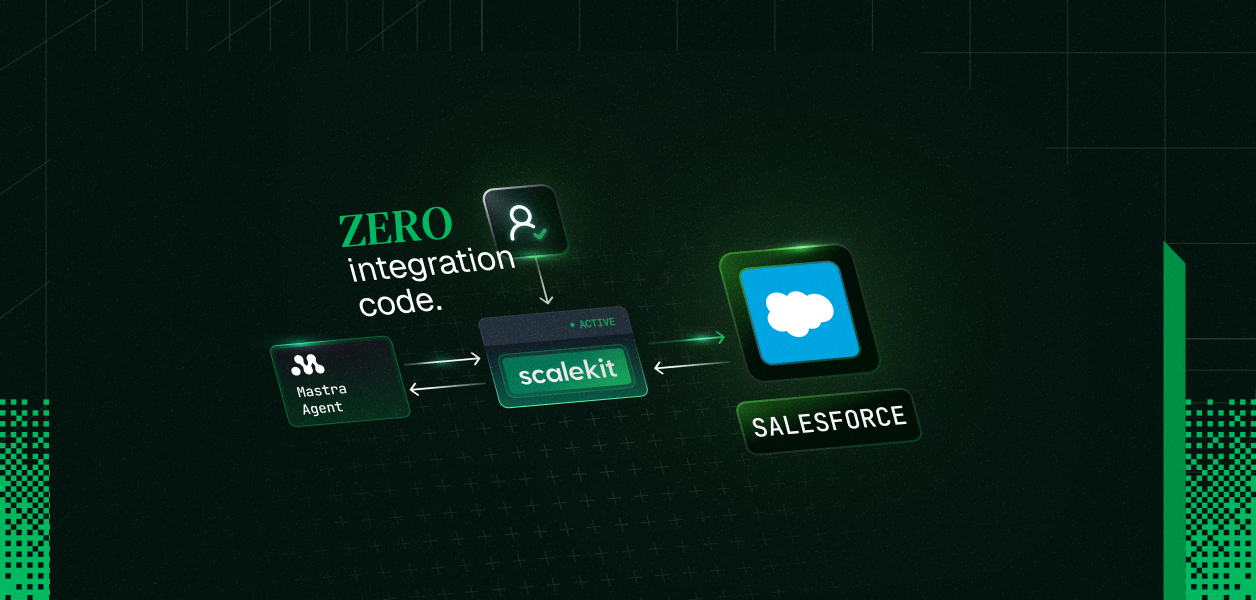
A complete TypeScript script wiring Scalekit's Salesforce tools into a Mastra agent — SOQL queries, record updates, activity logging — as individual users, no OAuth code required.
User connects Salesforce once via OAuth (Scalekit vaults the token)
listTools returns Salesforce tool definitions including SOQL execute; a createTool loop wraps each for Mastra; MCP alternative is especially clean for SOQL
agent.generate(prompt) drives the loop; Claude writes SOQL from natural language; tool calls hit scalekit.tools.executeTool with the user identifier
Your Mastra agent can query Salesforce records, update opportunities, and log activities, without writing a single OAuth flow or touching a Salesforce token. This post shows the complete TypeScript script that wires Scalekit's authenticated Salesforce tools into a Mastra agent.
npx tsx agent.ts "Move the Acme Corp opportunity to the Negotiation stage"
Expected output:
Connected account for user_123 is active.
Discovered 8 tools
Created 8 Mastra tools.
Prompt: Find all open opportunities closing this quarter with value over $50,000
Found 5 open opportunities closing this quarter with value over $50,000: Acme Corp ($120,000, closes Sep 28), ...
If this is the first run for the identifier, you will see an authorization link instead. Open it, complete Salesforce OAuth, then re-run the script.
How It Works
Step 1: Connect your user
getOrCreateConnectedAccount checks whether this identifier already has an active Salesforce connection. Status '1' maps to ACTIVE in the protobuf enum. If the connection is not active, getAuthorizationLink generates a URL the user opens to complete the OAuth flow.
In production, IDENTIFIER comes from your authenticated session: after your app verifies who is making the request via session cookie, JWT, or database lookup. Never accept it from client input.
Step 2: Discover tools
listTools returns Scalekit's tool definitions for the Salesforce connector: names, descriptions, and input schemas. The connector value in the filter must exactly match the Connection name you created in the Scalekit dashboard. It is case-sensitive. An empty result with no error is the most common first-run problem and almost always means a name mismatch.
Step 3: Wrap as Mastra tools
The loop converts each Scalekit tool definition into a Mastra createTool call. Unlike the Anthropic SDK path, Mastra requires explicit tool registration via createTool rather than passing raw schema arrays. z.object({}).passthrough() is the input schema, permissive on purpose. Scalekit validates inputs server-side against the actual Salesforce API schema.
Step 4: Run the agent
agent.generate(prompt) runs the Mastra agent loop. When the model decides to call a tool, it passes the tool name and inputs to the execute function, which calls scalekit.tools.executeTool. Scalekit makes the Salesforce API request using the stored token for that user.
The instructions tell the agent it can write SOQL from natural language, so a prompt like "find all open opps closing this quarter" becomes a SELECT ... FROM Opportunity WHERE ... query executed against the user's Salesforce org. Your code never writes SOQL directly.
Available Salesforce Tools
Category
Capability
Notes
Records
Retrieve accounts, contacts, leads, opportunities, and cases by ID or search
Covers the core CRM objects
SOQL Queries
Execute arbitrary SOQL for custom data retrieval
Agent writes SOQL from natural language
Activities
Create tasks and events linked to any CRM record
Cross-object Search
Find records by name, email, phone, or any field value
Metadata
Inspect and modify Salesforce org metadata via SOAP proxy
If you prefer a shorter setup, @mastra/mcp lets Mastra auto-discover tools from the Scalekit MCP server. No createTool loop needed.
Install: npm install @mastra/mcp
import { MCPClient } from '@mastra/mcp'
import { Agent } from '@mastra/core/agent'
import { openai } from '@ai-sdk/openai'
import 'dotenv/config'
// Generate this URL per user from your backend using the Scalekit SDK.
// Never expose this URL on the client side.
const mcpUrl = process.env.SCALEKIT_MCP_URL!
const mcp = new MCPClient({
servers: {
scalekit: { url: new URL(mcpUrl) },
},
})
const tools = await mcp.getTools()
const agent = new Agent({
name: 'salesforce-agent',
instructions:
'You are a helpful Salesforce assistant. When asked to find records, write and execute the appropriate SOQL query.',
model: openai('gpt-4o'),
tools,
})
const result = await agent.generate('Find all open opportunities closing this quarter with value over $50,000')
console.log(result.text)
await mcp.disconnect()
For Salesforce, the MCP path is especially clean: SOQL queries come through as a single natural-language tool call, and the schema is handled automatically. To generate the per-user MCP URL from your backend, see the Scalekit MCP docs.
Why This Already Handles Multiple Users
The USER_IDENTIFIER env var (the IDENTIFIER constant in the script) is what makes this scale from one user to many. In production, swap it with the identifier from your authenticated session. Each user in your system gets their own identifier. When they connect Salesforce through the OAuth flow, Scalekit stores their token under that identifier. Every tool call runs with that specific user's permissions against their own Salesforce org.
The same agent code serves every user without modification. Scalekit stores and refreshes OAuth tokens separately per identifier. Your code never sees a token directly.