

Your agent needs to read and write Google Docs. Google now ships two paths: a remote MCP server at docsmcp.googleapis.com and the Docs REST API that has existed for years. They are not two views of the same surface. They differ on what your agent can call, what your model has to know, what credentials you have to hold, and, most consequentially in 2026, whether you are allowed to ship the result to a customer. Here is the decision framework.
Both paths terminate at the same three REST methods. The difference is what sits in front of them, and how much of the Google Workspace surface each one can reach.
Google runs a remote Model Context Protocol (MCP) server for Docs at https://docsmcp.googleapis.com/mcp/v1, transport HTTP, auth OAuth 2.0. It is not a community fork; it is a first-party Google service, and it ships as part of the Google Workspace Developer Preview Program.
Standing it up means enabling two services in a Google Cloud project, docs.googleapis.com and docsmcp.googleapis.com, then creating your own OAuth 2.0 web application client. The documented setup registers a redirect URI per MCP host: one value for Antigravity, another for Claude. Four scopes are documented: documents, documents.readonly, drive.file, and drive.readonly.
Tool calls inherit the authorizing user's Google permissions. Google's documentation flags indirect prompt injection as a first-class risk here and points to Model Armor or an equivalent screening layer.
Official documentation: Configure the Docs MCP server.
The Docs API v1 has a small method surface. The documents resource exposes three methods: documents.create, documents.get, and documents.batchUpdate. Judging this API by method count badly understates it.
The real surface lives inside batchUpdate. Its Request union accepts more than 45 distinct request types, from insertText and updateTextStyle through insertTable, createHeader, pinTableHeaderRows, addDocumentTab, and insertRichLink. Each call takes an array of these, applied atomically.
Auth is standard Google OAuth 2.0 with the same Docs scopes. Nothing about the API is LLM-shaped: schema handling, pagination on the Drive side, index bookkeeping, error mapping, and retry behaviour are entirely yours.
Official documentation: Google Docs API reference.
This is the part that surprises teams. The Docs API cannot list or search documents; Drive owns file discovery, export, duplication, permissions, and the GA comments resource.
On the official MCP path that means a second server. Each Workspace product has its own dedicated MCP server, so a Docs agent that needs to find a document before editing it also needs drivemcp.googleapis.com, with its own service enablement, its own scopes, and its own entry in your client config.
The interesting comparison here is not a feature checklist. Because update_doc forwards a whole batchUpdate payload, the two paths are far closer on raw capability than they look, and far further apart on everything that determines production behaviour.
The table below covers the operations that show up in real document agents. The third column is included because most teams reading this are choosing between three options, not two.
Two caveats on that table. Comment and suggestion request types inside batchUpdate carry Developer Preview badges in Google's own Requests reference, so anything depending on them inherits preview status. Scalekit's comment tools sidestep this by routing through the Drive API comments resource instead.
Missing documents.create sounds minor until you trace a normal workflow. "Draft a project brief from this meeting transcript" starts with creating a document, and the Docs MCP server cannot do it. You either pre-create the file elsewhere or bring in the Drive MCP server's create_file.
Discovery is the same story, one level worse. "Update the Q3 pricing doc" requires resolving a title to a document ID, which is a Drive search. The Docs MCP server holds Drive scopes but exposes no Drive tools.
So the minimum viable official-MCP document agent is two servers, two enablement steps, and a coordination layer you write. That is the operational cost the two-tool surface hides.
Give Google's design its due. Two tools means almost no tool-schema overhead in the context window, and no schema drift when Google ships new batchUpdate request types. A 40-tool connector, by Scalekit's own estimate in its virtual MCP documentation, can consume roughly 8,000 tokens before the agent does any work.
The cost lands somewhere less visible. Because update_doc takes a raw batchUpdate request, the model has to know that schema itself, either from pretraining or from prompt tokens you spend on it.
That schema is unforgiving. Location.index is a zero-based offset in UTF-16 code units. Inserting a table puts the table start index at the requested index plus one. Creating paragraph bullets strips leading tabs and can shift surrounding indices. Invalid deleteContentRange boundaries return HTTP 400.
There is a security consequence to collapsing 45-plus operations into one tool. The documented update_doc surface offers no per-request-type restriction.
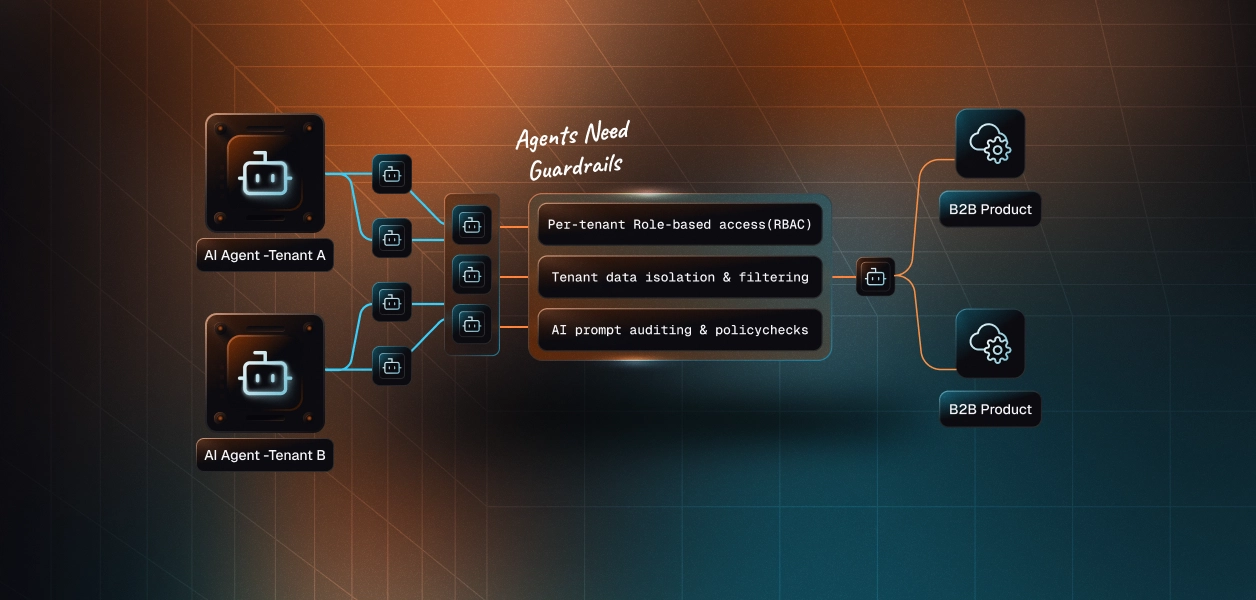
An agent authorized to call update_doc can send any request in the union. There is no documented way to permit insertText while denying deleteContentRange. Least privilege, at the level a security reviewer will ask about, is not expressible on this path. This parallels the broader challenge of access control for multi-tenant AI agents, where per-operation scope enforcement is foundational.
The MCP server uses OAuth 2.0 with an OAuth client you create and own. The documented setup is interactive: an Authenticate button in Antigravity, or a custom connector in Claude, which also requires a Claude Enterprise, Pro, Max, or Team plan. A human completes consent, and in the Antigravity flow pastes an authorization code back.
The REST API accepts the same user-delegated OAuth, and the Workspace platform supports service accounts with domain-wide delegation for org-level automation. Worth knowing: the Developer Preview Program cannot register service accounts, so that pattern and the preview MCP server do not combine.
Neither path escapes Google's consent screen review. Most agent connectors need an External audience, and until Google verifies your app, users see an unverified-app screen. An org-managed OAuth client does not bypass this.
This is the fact that reorders the whole comparison, and most write-ups on Google Workspace MCP skip it.
The Developer Preview Program terms state that program features may not appear in public applications before the general availability announcement, and that members may not grant end users outside their own domain or company access to applications built on pre-GA APIs. The FAQ answers it directly, and the answer is no. Pre-GA APIs ship as-is, and features typically sit in preview for three to six months.
Internal tooling for your own Workspace domain is workable. A B2B product where your customers' employees connect their own Google accounts is not, regardless of how good the tools are.
On the MCP path Google runs the server, the tool schemas, and the transport. You still own the OAuth client and its verification status, per-user token storage and refresh, revocation handling, tenant isolation, and the second server needed for Drive operations.
On the REST path you own all of that plus the request construction, index arithmetic, pagination across Docs and Drive, error mapping, and retries. In exchange you get a stable versioned contract and the full method surface, including documents.create.
Governance on both paths runs through the same objects: the Google Cloud project, the OAuth client and its scope grants, and Workspace admin allowlisting of that client. Connection troubleshooting goes through OAuth log events in the Workspace security investigation tool.
Do not assume MCP buys you a separate lane. Google's Docs API usage limits page documents the same read and write request model for both surfaces: 3,000 reads and 600 writes per minute per project, and 300 reads and 60 writes per minute per user per project. Each read_doc costs one read request; each update_doc costs one write request.
That 60 writes per minute per user is the number to design against. An agent issuing one write per paragraph hits the ceiling at 60 paragraphs a minute; the same edits batched into a single update_doc call cost one write request. Google also notes that standard use is free today, with charges for exceeding quota planned later in 2026.
Recommended reading: Access control for multi-tenant AI agents, since most Docs agents end up spanning both surfaces.
Whichever path you pick, Google hands you one OAuth credential per authorizing user and stops there. There is no vault, no rotation logic, no revocation flow, and no tenant boundary in the box.
In a multi-tenant B2B document agent, which is the default rather than the exception, every user connects their own Google account. Forty users across eight customer organizations is 40 tokens to encrypt at rest, refresh proactively, isolate per tenant, and revoke on offboarding.
The token type differs between paths. The infrastructure required does not. Understanding secure token management for AI agents at scale is the prerequisite for any production credential strategy here.
Google does not notify your application when a user disconnects it from their account settings. You discover it on the next tool call, as an authorization failure with no useful context, which the agent may well interpret as an empty result rather than a failure.
This is the failure mode worth designing for explicitly: a document agent that silently returns nothing looks identical to a document agent that correctly found nothing.
A token issued against a scope set does not silently widen. Deciding six months in that your agent also needs drive.file means a fresh consent from every already-connected user, coordinated across every tenant.
Get the scope decision right before your first customer connects, or budget for a re-authorization campaign.
Scalekit's approach is to make the transport decision reversible. One connector, one credential model, one audit surface, consumable either as native framework tools or as an MCP endpoint.
The Scalekit Google Docs connector is OAuth 2.0 and ships 47 tools. Critically, it does not stop at the Docs API boundary.
Comment operations route through the Drive API comments resource. googledocs_export_document uses the Drive export endpoint. googledocs_copy_document and googledocs_list_documents use Drive as well. The agent sees one coherent document toolset instead of two servers stitched together.
Discrete tools also restore what update_doc collapses. googledocs_insert_text, googledocs_apply_text_style, and googledocs_delete_content_range are separate, individually grantable operations rather than one write endpoint that can do anything.
Register your Google OAuth credentials once per environment in the Scalekit dashboard under AgentKit, Connections. Enable the Google Docs API in your Google Cloud project and add the Scalekit redirect URI to your OAuth client, following the connector setup steps.
The connection_name you pass in code must match the connection name configured in the dashboard exactly. This is the single most common integration error on a first run.
Before an agent can act, the user needs an active connected account. Check for one, and if it is missing or inactive, send them through authorization.
For production authorization handling, including redirect and verification, see Authorize a user.
This is the step that separates a per-user agent from a shared-credential one. list_scoped_tools does not return a flat catalogue of everything the connector supports; it returns the tools the current user's connected account is authorized to call, filtered to the subset you allow.
Note what is absent from that filter: googledocs_delete_content_range. A drafting agent has no business deleting content ranges, and here that is a configuration decision rather than a prompt instruction. This is the per-operation least privilege the update_doc surface cannot express.
Scalekit's LangChain adapter returns native StructuredTool objects, so there is no schema reshaping between the connector and the framework. For a broader look at how LangChain tool calling works and where it stops, the pattern here maps cleanly onto that architecture.
Every call in that loop resolves the authorizing user's Google credential server-side. The token never enters the model's context, and the write lands as that user in the document's revision history.
The Docs API moves quickly, and preview request types land before connector tools do. The proxy keeps you unblocked without abandoning the credential model.
The same per-user token resolution and logging apply. See proxying API calls for the full pattern.
If you want MCP as your transport, you do not have to accept Google's tool boundaries to get it. A virtual MCP server is a scoped endpoint that declares which connections and which tools an agent can see, with per-user credentials resolved behind it.
Three reasons, in descending order of how hard they are to work around.
Preview terms block customer-facing deployment outright. The Docs-only boundary forces a second MCP server for search and export, each with its own config and consent. And a single update_doc tool cannot be narrowed to the operations your agent should actually perform.
A virtual MCP server addresses all three at once. Docs tools and Drive tools land on one endpoint, the tool list is whatever subset you declare, and the underlying connectors are generally available rather than pre-GA.
Create it once per agent role, not once per user. The response includes a static mcp_server_url you reuse across every user and session.
Confirm the exact Google Drive tool names against the Google Drive connector reference before you ship; connector tool lists are the authoritative source.
OAuth credentials expire and get revoked between runs, so verify the connections are still active, then mint a short-lived token bound to that specific user. Getting token refresh right for AI agents is critical here — a stale token at run time means a silent failure.
Never reuse a token across runs, and set the expiry longer than the expected run duration. The setup and lifecycle details are in set up and connect a virtual MCP server.
Mastra has native MCP support, so it discovers the tool list and Zod-compatible schemas from the endpoint without any manual conversion. Generate the per-user URL on your backend and hand it to the agent for that request only.
One MCP URL per user, resolved server-side per request. A process-wide URL is safe only in a single-user demo; sharing it runs every request as that one user. The full pattern is in the Mastra example.
Capability comparisons rarely mention this, and it is usually the first thing an enterprise security reviewer asks about. When your agent edited a customer's document, who authorized it, which tool ran, and what came back?
Because Scalekit resolves the credential at call time rather than handing your runtime a token, every downstream tool call has an identity attached to it. Logs carry the authorizing user, the agent, the tool, the scope, and the response, exportable to your SIEM with failures separated by source.
The Node SDK surfaces a per-call handle directly. scalekit.actions.executeTool returns both data and executionId, so you can correlate a Google Docs write with the agent run and the user consent that authorized it.
Google's MCP server logs on Google's side: OAuth log events in the Workspace security investigation tool, visible to the Workspace admin. That is the right place for a Workspace admin to look. It is the wrong place for you.
You cannot answer a customer's question about their tenant from another customer's Workspace audit log. Cross-tenant attribution for your own agent has to live in your infrastructure, and it has to exist before the security questionnaire arrives, not after. A proper approach to audit trails for agent auth in B2B SaaS means logging is built into the execution layer, not retrofitted.
For Google Docs specifically, this decision is less balanced than the equivalent one for Slack or Notion, and the deciding factor is not capability.
If your agent serves users inside your own Workspace domain with a human present, the official Docs MCP server is a reasonable start, provided you accept a second server for Drive operations and one unrestricted write tool. If it serves customers outside your organization, creates documents, or runs unattended, build against the Docs and Drive APIs directly. Preview terms make that a compliance decision, not a preference.
Either way, the per-user credential problem is identical, and it does not get smaller as you add Google Sheets, Gmail, and Slack behind the same agent. Understanding who holds the token across agent tool-calling patterns is the layer worth making infrastructure.
Browse the connector references and starter agents:
Building on Google Docs and want to compare notes on scopes, consent screen verification, or virtual MCP design? Join the Scalekit Slack community, or talk to an engineer if you need an answer today.