

Your users expect the Claude agent you've built to search Slack history, post to channels, and read conversations as their own Slack identity — not as a shared bot or integration account.
When the second person starts using your agent, a single shared connection falls apart fast: messages post under the wrong name, searches return conversations the current user shouldn't see, and replies come from the wrong person.
You don't need bot tokens, webhook plumbing, per-user token storage, or an OAuth implementation. Scalekit lets your agent act as each user natively.
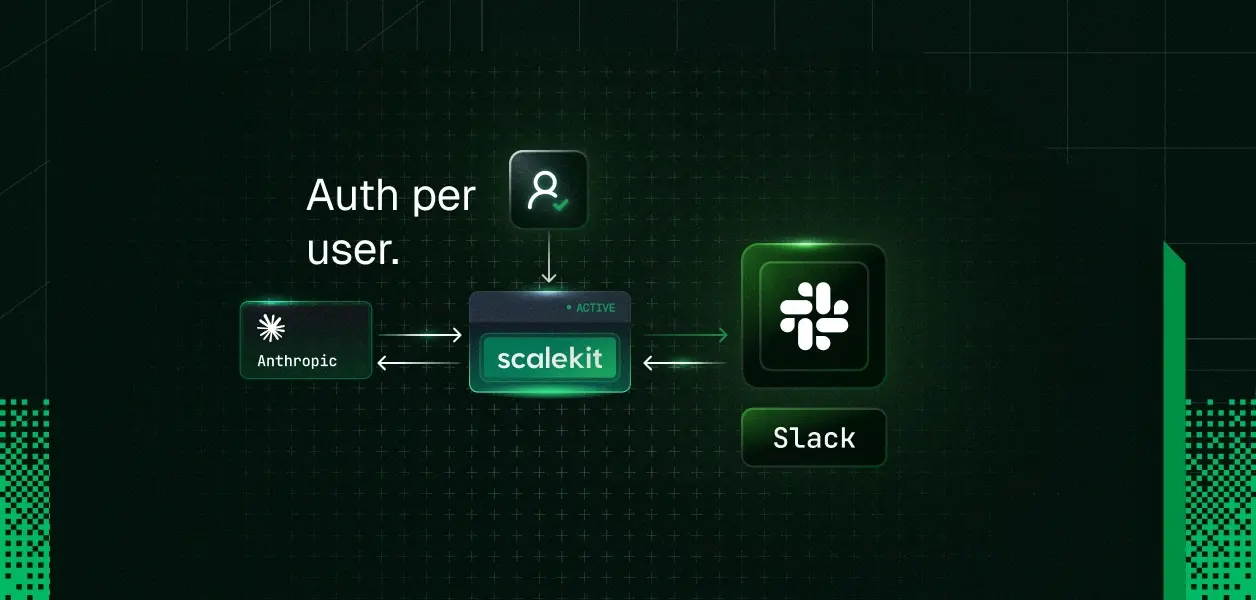
Scalekit connects your agent to Slack through each user's own identity and returns tools in Anthropic's native format.
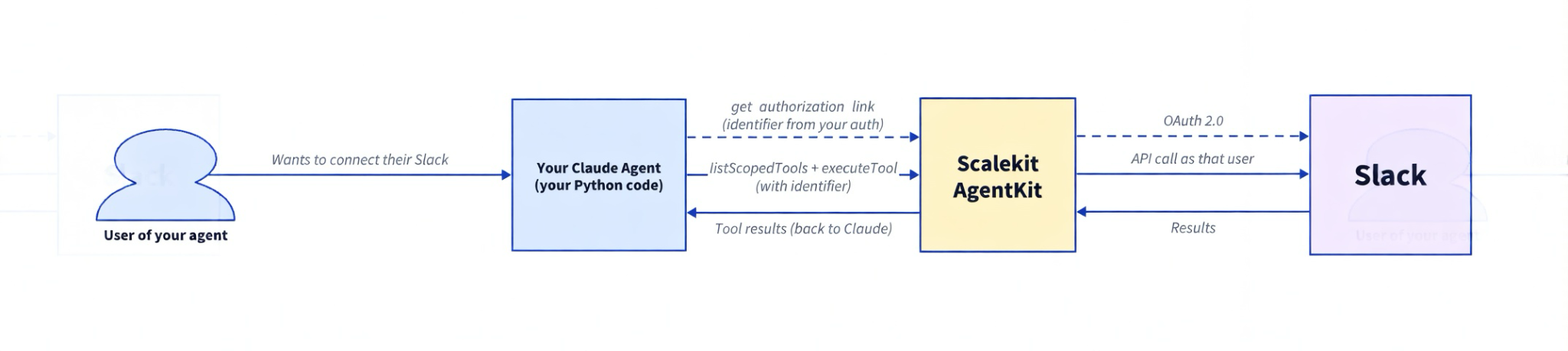
You are building a Claude agent in TypeScript (using the Anthropic SDK). When one of your users chats with the agent and asks it to do something in Slack, your code calls Scalekit.
You pass an identifier that represents the current person in your own system. This identifier comes from your application's normal authentication (after you verify the user via session, JWT, database lookup, etc.). Never trust an identifier coming from the client.
Scalekit looks up the Slack connection that person previously authorized through your app. It then makes the actual Slack API call using their identity and permissions. Your code never sees or manages tokens.
The one-time connection step is also triggered from your app. When a user wants to link their Slack account so your agent can act on their behalf, you generate the authorization link using their identifier and guide them through the OAuth flow.
You can run the script directly with tsx (recommended for top-level await + dotenv):
Or compile to JS first and run with Node.
Critical: The value 'slack' (in the filter / connectionNames) must be the exact Connection name you entered when you created the Slack connection in the Scalekit dashboard (one-time step under Agent Auth → Connections). Names are case-sensitive.
Create a .env file (loaded automatically by dotenv):
On the first run for a new identifier, the script will print an authorization link. Open it, complete the Slack OAuth (app must be installed in the workspace), then re-run the script.
You should see something like:
The script is deliberately minimal. Every piece maps to one concept. (The same mental model applies if you later port it to Python.)
get_or_create_connected_account checks whether this identifier already has an active Slack connection. If not, get_authorization_link generates the URL the user opens to complete Slack OAuth (the Scalekit app must already be installed in the target workspace). In production the identifier always comes from your own authenticated session — never from the client.
list_scoped_tools returns the tools available for this user's Slack connection. The key part is the filter:
The name you put inside the filter (e.g. "slack") must exactly match the Connection name you created in the Scalekit dashboard. It is case-sensitive.
A mismatch here is the most common reason for getting an empty tool list on the first run. The same filter pattern works for any connector.
This is the standard Anthropic Messages API tool-use loop:
Claude can request multiple tools in one turn; the loop processes all of them before the next messages.create.
In production you will usually wrap the executeTool call in try/catch so transient errors or permission issues are returned to Claude as tool results instead of crashing the agent. Many teams also add simple logging of tool name + input + result for debugging and audit trails.
execute_tool takes the exact tool name Claude asked for, the user identifier, and the input object. Scalekit looks up the stored Slack token for that identifier and makes the real Slack Web API call. Your code never sees the token, never refreshes it, and never worries about scopes.
Scalekit returns each tool with name, description, and input_schema exactly as Anthropic expects. Example (search):
You pass the array of these objects directly to anthropic.messages.create({ tools: llmTools, ... }).
The TypeScript SDK returns plain objects, so the code just maps over the result and does light filtering + type assertions. No protobuf conversion needed.
The Slack connector exposes a broad surface. In testing a typical connected account returns around a dozen tools. Here is the practical set grouped the way most agents use them:
Exact names and the full set can evolve as the connector is improved. Scalekit keeps the definitions current against Slack's API. See the live list in the Slack connector docs.
The same 50-line script handles any prompt that maps to the available tools. A few realistic ones that tend to produce interesting multi-tool or multi-turn behavior:
Search + summarize a thread:
"Find the last discussion about the Q3 launch timeline and summarize the open action items and owners."
Claude usually calls slack_search_messages first, then may call slack_conversations_history on the most relevant channel to pull full context before answering.
Post as the actual user (not a bot):
"Post a short standup summary to #eng-updates: 'Blocked on the new billing worker. Will pair with Maya tomorrow.'"
Claude calls slack_chat_postMessage. The message appears from your real Slack identity with your avatar and name. Anyone can @-reply you directly.
Channel history + follow-up question:
"What decisions were made in #product yesterday about the new onboarding flow?"
Claude calls slack_conversations_history (with a sensible oldest timestamp) and returns a concise digest with speaker attribution.
Cross-user lookup + message:
"Find Maya's Slack ID and send her a direct message asking for the latest design file link."
This typically triggers slack_users_list (or search via another tool) followed by slack_chat_postMessage to the im channel. All with the correct user token.
Claude can chain these naturally. You don't write any Slack-specific routing or identity logic — the model + the scoped tools do the work.
Search + DM a teammate:
"Find the last message from Maya about the design handoff and send her a DM asking for the Figma link."
This usually triggers slack_search_messages followed by slack_chat_postMessage (to an IM channel). It demonstrates the agent using search results to decide who to message next.
The identifier parameter ("user_123" in the example) is what makes the same script safe for teams and customer-facing products. Every user in your system gets their own identifier. When they connect Slack, Scalekit stores their token under that identifier. Every search, every message sent, every history read happens with that specific user's Slack identity and permissions.
This is fundamentally different from a Slack bot. A bot posts as itself (or a shared integration user). With Scalekit your agent posts as the actual human, searches only the channels and DMs they can see, and respects the exact same access control Slack enforces for that person.
In production you resolve the identifier from your own auth system after you have verified the caller:
If the user has never connected Slack, get_or_create_connected_account returns a non-ACTIVE status and you surface the authorization link. Once they complete it, their token is vaulted and refreshed automatically. You never handle the token yourself.
The pattern is identical for Linear, Gmail, GitHub, or any other connector.
Here are the questions developers ask most often when wiring up their first Claude agent with Slack.
For Slack, this almost always means the Scalekit Slack app has not been installed to the target workspace (or the user completed OAuth in a different workspace). The magic link still works, but Slack only shows workspaces where the app is already installed. In the Scalekit dashboard, go to the Slack connection and follow the install instructions, then have the user open a fresh authorization link.
The name you pass in the filter must exactly match the Connection name you created in the Scalekit dashboard (see the Critical note in the "Run it" section). Names are case-sensitive. An empty list is silent — no error is raised. This is the most common first-run failure.
The connected Slack identity does not have access to that channel or conversation. This is expected behavior — the agent can only see and act on what that specific user can see. Pass the exact error back to Claude as a tool_result (wrap the call in try/except and put the error message in the content field). Claude will usually adjust and ask for a different channel or tell the user what happened.
The prompt was too vague. "Find recent messages about the Q3 launch in #product" works much better than "Tell me what's going on at work." Also confirm that llm_tools is populated before the first messages.create() call.
Make sure you ran npm install @anthropic-ai/sdk @scalekit-sdk/node and that your tsconfig.json has appropriate settings for ESM (if using native ESM). The example uses top-level await, so running with npx tsx is the simplest way to execute it during development.
Wrap the execute_tool call in a try/except, turn the exception into a short human-readable string, and return it as the tool result. Claude handles messages like "rate_limited" or "slack_error: ..." surprisingly well and will usually back off or rephrase on the next turn.
Other connectors. The same 50-line pattern works with Gmail, Linear, GitHub, HubSpot, Notion, and dozens more. Just change the connection_name and the opening prompt. See the full connector catalog.
Other frameworks. The identical connected-account + listScopedTools / executeTool approach works with LangChain, CrewAI, Vercel AI SDK, Google ADK, and raw MCP servers. See all framework examples.
Source code. The runnable Anthropic + Scalekit examples live in the agent-auth-examples repo under python/frameworks/anthropic/ and javascript/frameworks/anthropic/.