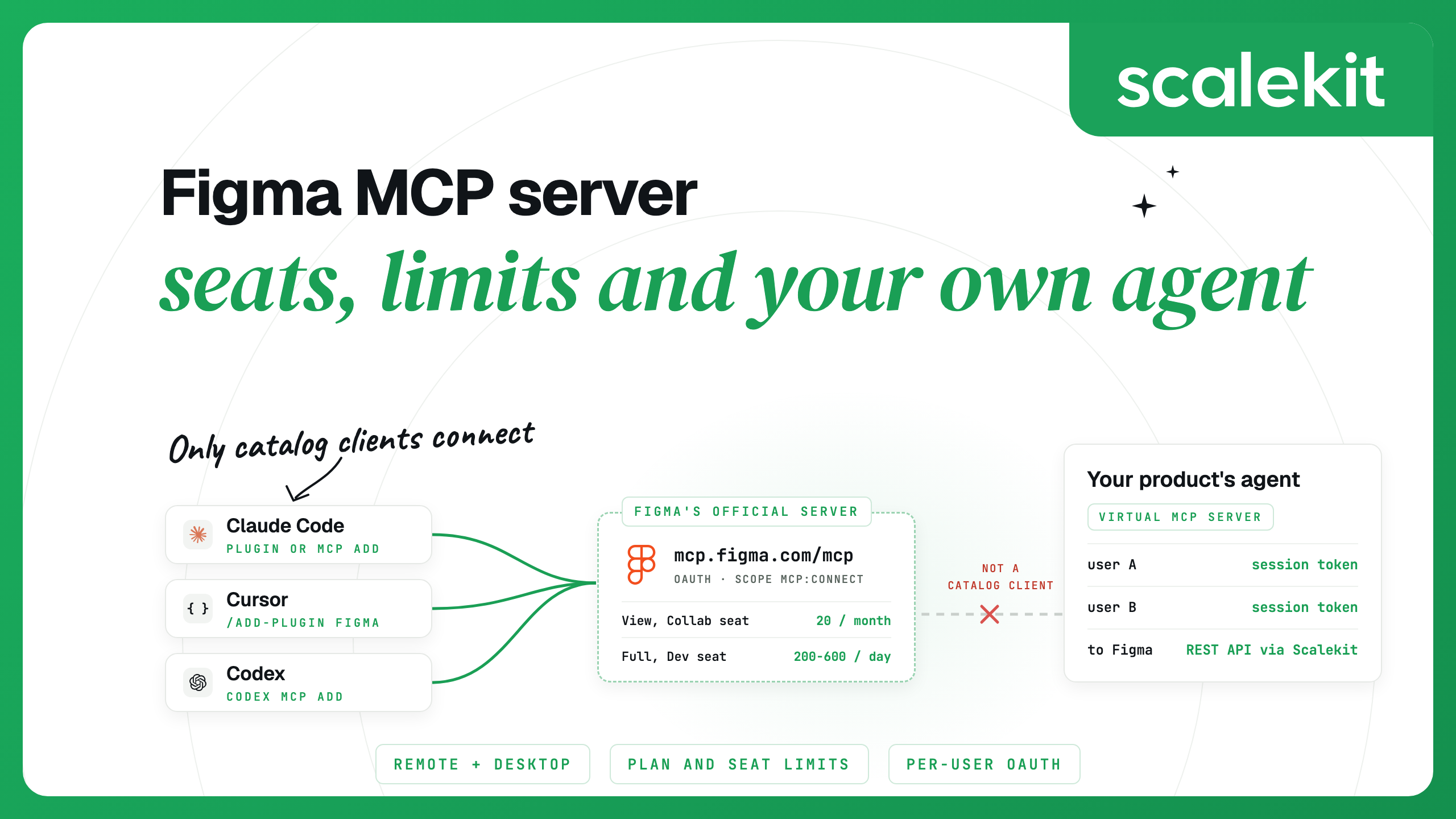


The Figma MCP server is Figma's official MCP server. The recommended remote server runs at https://mcp.figma.com/mcp, signs you in with your Figma account through OAuth and acts as you, so it only reaches files you already have access to. Only clients listed in the Figma MCP catalog, such as Claude Code, Cursor and Codex, can connect to it.
For one person in one editor, setup is a plugin install or a single command. The harder questions are which seat you need, how many tool calls your plan allows, and how your own product's agent reaches Figma for many users, which calls for a different design from single-user MCP integrations.
The server gives an agent structured design context from the Figma layers you point it at, such as frames, components, layout and variables, and your agent writes the final code. It follows your design system's conventions only if you share them through Code Connect, variables, rules or your prompts.
Its tools fall into a few groups:
Writing to the canvas is in beta. Figma describes it as free during the beta period and says it will eventually become a usage-based paid feature. It needs edit access to the file, a Professional, Education, Organization or Enterprise plan, and a supported client on the remote server.
Figma recommends the remote server for most users. The desktop server is intended for specific organization and enterprise needs, and it is the only option on Figma for Government. The remote server works from links: right-click a frame or layer, choose Copy link to selection and paste the link into your prompt. Prompting with your current selection works only with the desktop server.
The remote server uses the HTTP transport and OAuth. A request without a token gets a 401 whose WWW-Authenticate header points to the server's protected resource metadata, which names https://api.figma.com as the authorization server and mcp:connect as the only scope. Supported clients run the browser sign-in for you, using the authorization code grant with PKCE. Developers who want to connect a new client can join Figma's waitlist.
For Claude, Figma also supports enterprise-managed authorization through Okta Cross App Access: members sign in once through Okta instead of each signing in to Figma separately.
Figma's rate limits page sets tool-call limits by plan and seat. Per-minute limits apply in addition to the daily or monthly limits.
Education plans have the same limits as Full and Dev seats on the Professional plan. Two details change how you budget:
Seat type also decides what an agent can write. Writing to files outside your drafts needs a Full seat. With a Dev seat, the agent can write in your drafts and has read-only access to other files. If a file cannot be accessed, ask the agent to run whoami and check that the account it shows belongs to the plan that owns the file.
Figma recommends its Claude Code plugin, which includes the server settings and Figma's skills for common workflows:
Restart Claude Code if it is running, type /plugin, open the Installed tab, select the figma server and press Enter to sign in. If the install fails, your organization may have blocked plugins; add the server by hand instead:
Leave out --scope user to add it to the current project only. Start a new session, type /mcp, select figma and choose Authenticate to finish the sign-in in your browser. A manual install does not include Figma's skills, such as figma-use, which helps the agent call use_figma reliably when writing to the canvas.
Claude Code limits MCP tool output to 25,000 tokens by default. If get_design_context fails on a large frame because its response exceeds the maximum allowed tokens, select a smaller part of the design or raise the limit before starting Claude Code:
The Figma plugin for Cursor bundles the server, skills for implementing designs and Code Connect, and rules for handling assets. Open chat, enter /add-plugin figma, add the plugin, then click Connect next to Figma in Cursor's MCP settings and allow access. To add the server by hand, put this entry in ~/.cursor/mcp.json for every project or .cursor/mcp.json for one project, then click Connect to sign in:
If Figma tool calls start failing in Cursor, the usual cause is an expired or corrupted sign-in token: run Clear All MCP Tokens from the command palette and sign in again.
In the Codex app, open Plugins, add Figma and allow access. In the Codex CLI, add the remote server from your terminal and sign in when prompted:
The CLI route does not install Figma's skills. Here is the same server in ~/.codex/config.toml, set to prompt for any tool the server does not mark read-only:
Run codex mcp login figma to sign in again. If Figma tools are missing in Codex, ask your Codex administrator to check that third-party plugins are allowed and the Figma tools are approved.
In VS Code, run MCP: Open User Configuration, paste this into mcp.json, click Start above the server name and allow access:
Any other client in the catalog connects the same way: add an HTTP server with the URL https://mcp.figma.com/mcp and sign in when prompted.
Open the Figma desktop app, switch a Design file to Dev Mode with nothing selected, and click Enable desktop MCP server in the right sidebar. Then add the local address to your client:
If use_figma or generate_figma_design is missing after you set up the remote server, the most common cause is an old desktop entry: the two servers have similar tool names, so the client may never load the remote-only tools. Remove the local entry and restart the client:
The official server is the right default for anyone working in their own editor. Figma maintains the tools and ships canvas writing and Code Connect, and you only manage a sign-in.
The community server Framelink MCP for Figma is MIT-licensed and published on npm as figma-developer-mcp. It calls Figma's REST API and simplifies the response so only the most relevant layout and styling information reaches the model. It runs with a personal access token, passed as a command-line flag or in the env field. The env form keeps the token out of the arguments:
A personal access token acts as the user who generated it, can reach anything that user can, and lasts at most 90 days. Treat any third-party server like other code you run with a credential, and vet it before you install it.
Managed services hold one authorization per end user. Composio lists 52 Figma tools, supports OAuth2 and API keys, and creates an MCP session per user ID. It is the better fit when you already build on Composio and want Figma next to its other toolkits.
A product that runs its own agent for its customers reaches Figma through the REST API. Figma recommends an OAuth app when an application acts on behalf of individual Figma users. The REST API reads files, nodes, images, components, styles and version history, posts comments, writes dev resources, manages webhooks, and handles variables on Enterprise plans. Canvas editing through use_figma stays on the MCP server. Figma MCP vs Figma API compares the two surfaces task by task.
Built by hand, the per-user OAuth work looks like this:
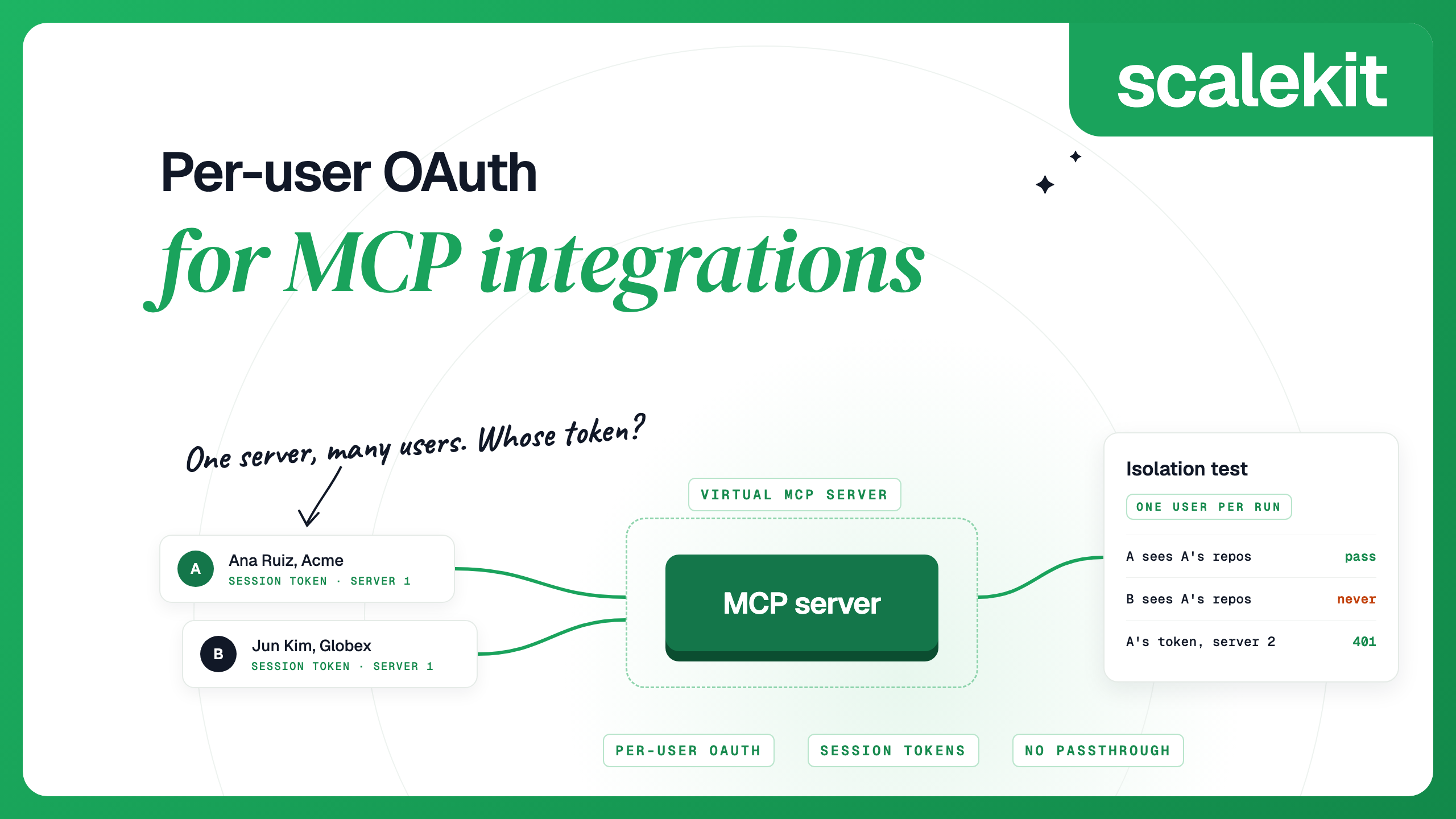
Per-user OAuth for MCP integrations covers this design and its failure modes in more depth.
AgentKit is an MCP gateway that runs each user's OAuth flow, stores their tokens encrypted with AES-256-GCM under a key per environment, refreshes them and calls tools as that user. Its Figma connector works over Figma's REST API with OAuth 2.0 and your own Figma OAuth app, and lists 54 tools: 43 read, 7 write and 4 destructive. You register the app in the Figma developer portal, paste Scalekit's redirect URI into it, and choose the scopes your agent needs on the connection.
You create a Virtual MCP server once per agent role and choose its tools. All users share its URL. Before each run, your back end mints a session token for one user, and the agent connects with that token. Scalekit checks the token, finds that user's Figma account and calls Figma with it, so your agent never receives the user's Figma token.
Once per agent role: create the server.
Before each run: check the user's account, then mint a token.
During the run: connect any MCP client with the server URL and the session token as a bearer header. With the Python MCP SDK (version 2):
How session tokens behave:
By default, tools/list also includes a connect_account tool, so an agent can fetch an authorization link for a user who has not connected Figma yet. To revoke one user, delete their connected account; their next call fails until they authorize again, and other users keep working:
It is available on Starter, Professional, Education, Organization, Government and Enterprise plans, with tool-call limits set by plan and seat. The Starter plan and View or Collab seats get 20 tool calls per month. Writing to the canvas is free during its beta period and will eventually become a usage-based paid feature.
Full and Dev seats get up to 200 tool calls per day on Professional and Organization plans and up to 600 per day on Enterprise, with per-minute limits on top. View and Collab seats, and the Starter plan, get 20 per month. Figma may change the limits at any time.
The desktop server needs a Dev or Full seat on a Professional, Education, Organization, Government or Enterprise plan. To write to files outside your drafts, you need a Full seat. A Dev seat can write in your drafts and has read-only access to other files.
Run claude plugin install figma@claude-plugins-official, then sign in from the Installed tab of /plugin. Without plugins, run claude mcp add --transport http figma https://mcp.figma.com/mcp, then type /mcp, select figma and choose Authenticate.
Only clients listed in the Figma MCP catalog can connect, and developers of new clients can join Figma's waitlist. A custom agent can use Figma's REST API instead, with an OAuth app that acts on behalf of individual users. Scalekit's Figma connector runs that OAuth flow per user and serves the tools through a Virtual MCP server.
Details checked October 2026.


.webp)