

An enterprise customer attempted to log in using Single Sign-On after weeks of internal testing. The login screen redirected correctly, the metadata appeared valid, and the certificates were already configured. Yet authentication failed with a generic “Authentication Error.” The UI message showed “default role not configured”, while the logs appeared incomplete. The IdP team confirmed their setup was correct, leaving the product team to compare payloads rather than ship features.
SSO failures rarely break loudly. They usually fail with partially correct configurations, redirects work, XML parses, and tokens arrive, but one small mismatch, such as attributes, assertion URLs, or roles, silently invalidates the flow. Because SSO spans two systems owned by different teams, reproducing the issue becomes slow and unpredictable.
This guide walks through a practical SSO testing workflow instead of theory. We will follow a real debugging journey using controlled testing flows, simulators, and protocol-level logs rather than generic setup instructions.
SSO failures often hide behind “almost correct” configurations. In the earlier scenario, the error message read “default role not configured,” but that message did not reveal the underlying validation issue; it rarely tells the full story. Redirects may succeed, tokens may arrive, and XML may parse correctly, yet authentication still fails because one protocol expectation is slightly misaligned. These mismatches usually sit in metadata, attributes, or signing details rather than obvious code errors.
Most SSO testing issues fall into a few repeatable categories. Recognizing these patterns early helps teams debug more quickly rather than blindly inspecting payloads. Many of these failures produce identical UI errors, which is why structured testing and log visibility become essential rather than optional.
Protocol-level configuration issues
Time-related issues
User-state and authorization issues
These issues rarely break the entire flow. They allow partial success: the request reaches the IdP but fails during validation or attribute processing. That partial success is what makes SSO bugs time-consuming, because the system appears functional until the final verification step rejects the assertion.
Uncontrolled testing creates inconsistent results. After identifying common failure categories, the next challenge is reproducing them reliably. Testing SSO against live enterprise IdPs often introduces delays, dependency on external teams, and configuration drift. Small changes in metadata, certificates, or redirect URLs can alter behavior between attempts, making debugging unpredictable and slow.
A controlled testing flow isolates variables and keeps the code path stable. Instead of rewiring configuration files or creating multiple environment branches, a dedicated testing organization with an IdP simulator lets developers run the same authentication logic repeatedly, changing only the test context. This makes failures repeatable rather than accidental and allows teams to validate login, attribute mapping, and error handling before customer onboarding.
In our scenario, reproducing the failed login required a validation loop, log inspection, and configuration fixes rather than a single retry.
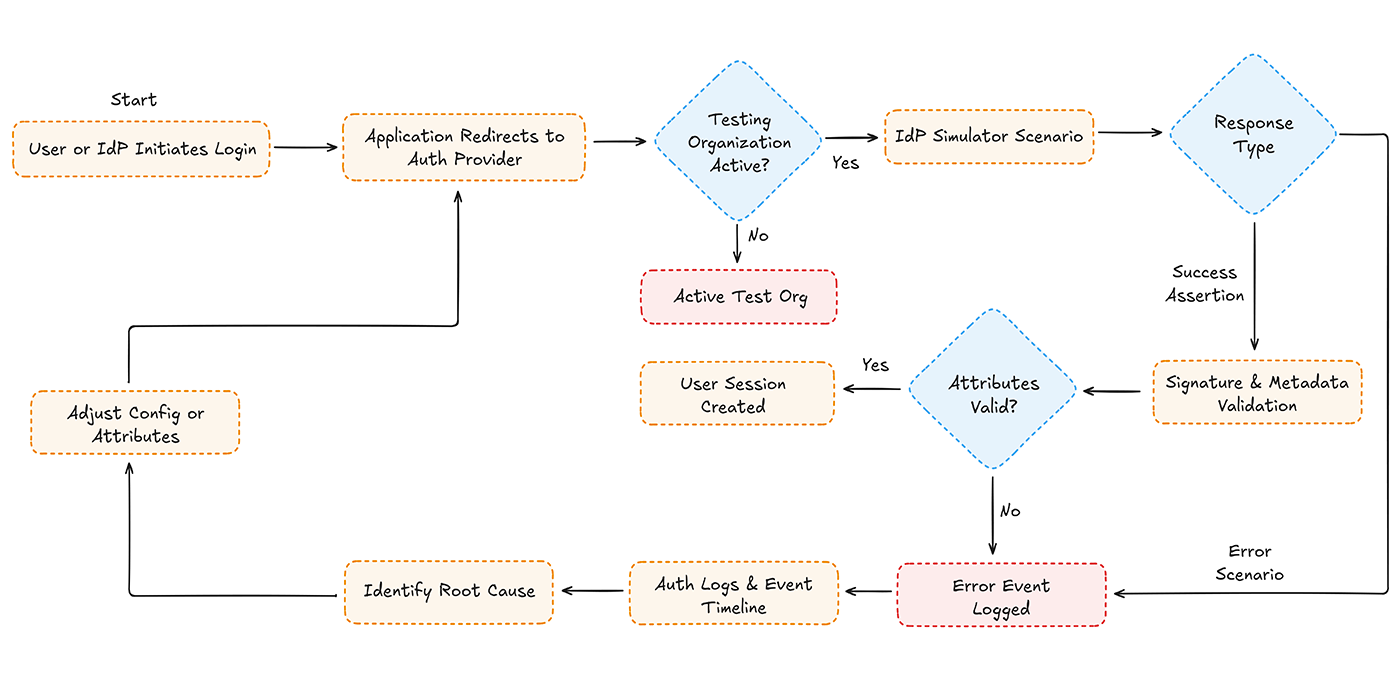
This turns a one-time authentication failure into a repeatable validation process rather than a trial-and-error fix.
Authentication logs reveal what the UI hides. In the earlier scenario, the login screen only displayed a default role not configured, but the real failure occurred earlier in the validation chain. UI messages usually summarize the final rejection, while logs show the entire sequence: redirect, assertion receipt, attribute validation, and authorization decisions. Without log inspection, developers often adjust the wrong configuration layer.
Event timelines make multi-step failures traceable rather than relying on guesswork. Rather than comparing raw XML or scattered console outputs, structured authentication logs present each step of the exchange in order. This helps determine whether the break occurred during signature verification, attribute mapping, or user authorization, rather than assuming the issue lies in the most recent visible error message.
Recommended: Explore Scalekit's docs to implement authentication in minutes.
Frequently Observed SSO Error Codes
Logs convert ambiguous UI feedback into actionable protocol details. Instead of repeatedly retrying the login, developers can observe validation steps, adjust only the failing layer, and rerun the same structured testing flow. This keeps debugging focused on evidence rather than assumptions.
After opening authentication logs, developers usually see structured error identifiers rather than friendly UI text. While the login screen may show generic messages such as Authentication Failed or User Not Authorized, the system records protocol-level error codes that pinpoint the precise break request formation, assertion validation, attribute mapping, or authorization logic. Reading these codes correctly prevents unnecessary configuration changes.
Mapping error codes to validation layers shortens debugging cycles. Instead of diffing entire payloads or blindly rotating certificates, teams can adjust only the configuration associated with the failing checkpoint. This shifts troubleshooting from exploratory trial-and-error to targeted validation and verification.
Error codes transform ambiguous login failures into specific validation signals. Instead of asking “why did this fail?” developers can quickly identify which step rejected the assertion and verify the fix using the same repeatable test cycle.
Scalekit provides a default test organization that routes authentication through an IdP simulator. Instead of creating additional environments or duplicating configuration files, replace the production organization ID with the test organization ID provided. Once the test ID is active, authentication attempts are routed through the simulator without changing redirect URLs, certificates, or metadata files. The authentication path in the application remains the same, and only the organization context changes.
Recommended Scalekit Product Update: SSO Testing Simplified with New IdP Simulator
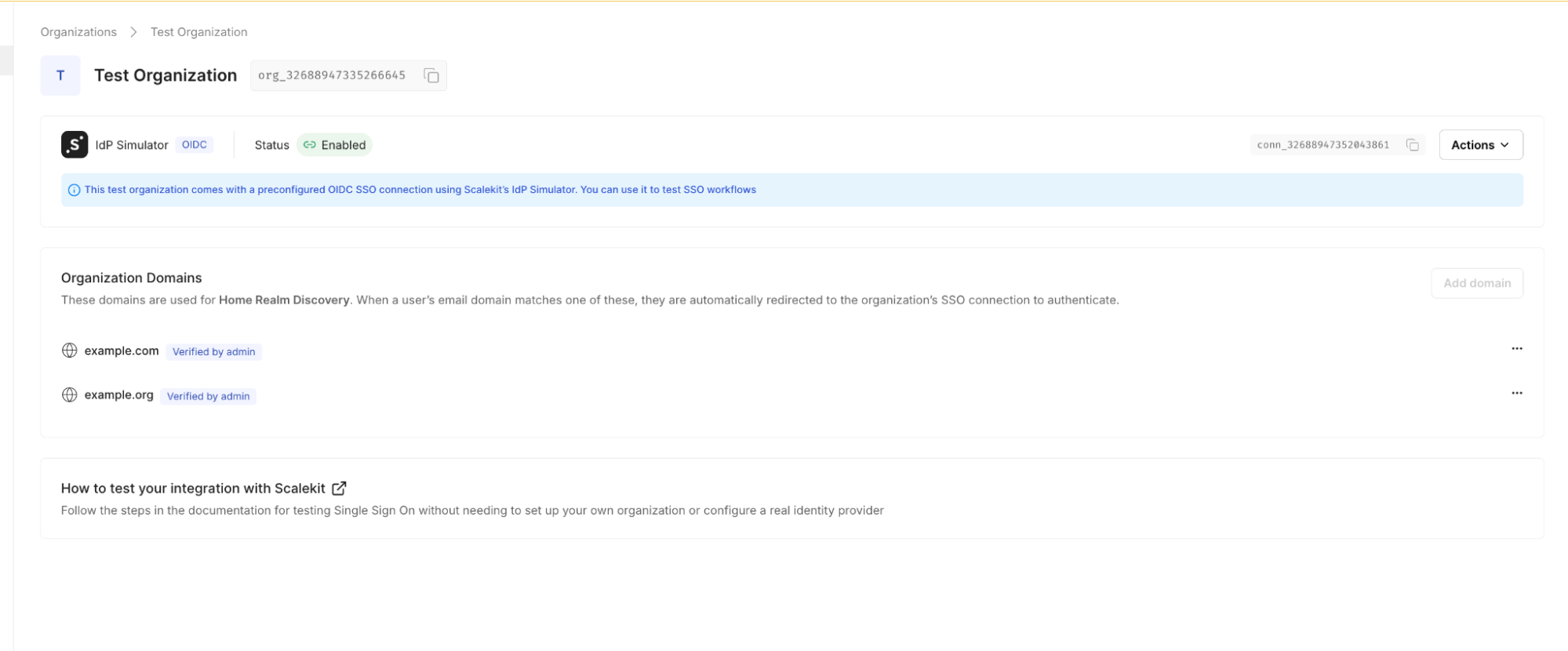
The organization ID shown on the dashboard is used to route authentication through the simulator instead of a live enterprise IdP.
Once the test organization ID is available, it can be supplied when generating the authorization URL. This routes the authentication request through the IdP simulator while keeping the application’s redirect and callback logic unchanged.
The following example illustrates this using a Scalekit SDK-based authorization flow. The exact method may vary depending on the SDK or integration approach being used.
This approach allows the same login entry point in the application to initiate simulated SSO scenarios, including both successful authentications and intentionally triggered error cases, without changing production redirects or callbacks.
After running an SSO attempt using the test organization, the next step is to review how the authentication exchange was processed. The dashboard surfaces each login attempt as an individual event, allowing you to inspect whether the request succeeded, failed during validation, or was interrupted mid-flow. This removes the need to rely only on browser errors or console logs.
Authentication attempts are typically grouped with timestamps, request identifiers, and status labels such as success, failure, or not completed. Selecting an event reveals the sequence of actions that occurred during the exchange, including redirects, assertion handling, and attribute validation results. Reviewing this view immediately after a test run helps confirm whether the observed behavior matches the expected outcome.
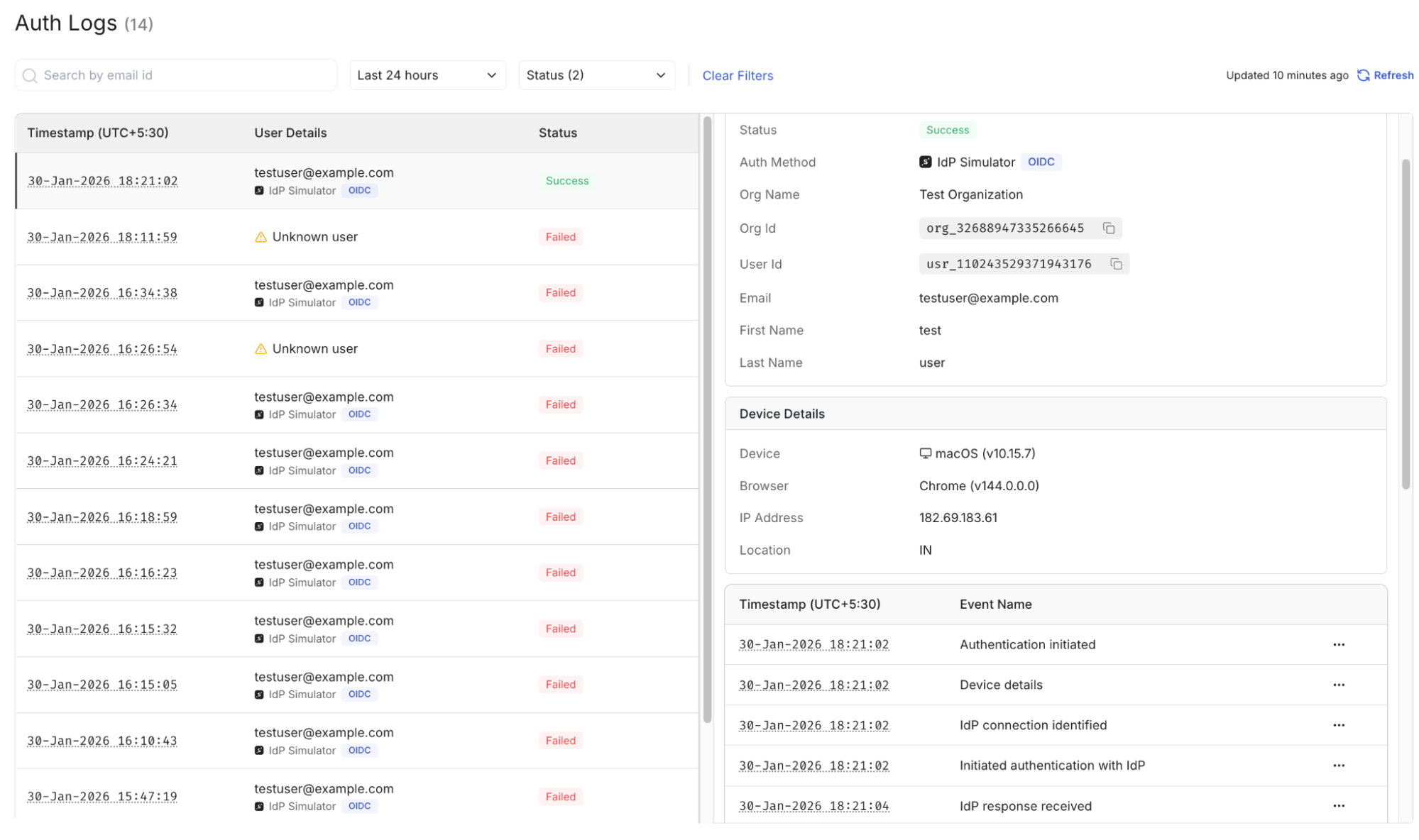
Opening a specific event exposes deeper protocol details such as request parameters, response payload summaries, attribute mappings, and validation checkpoints. This view is useful when a UI error message is too generic or when multiple login attempts produce different outcomes.
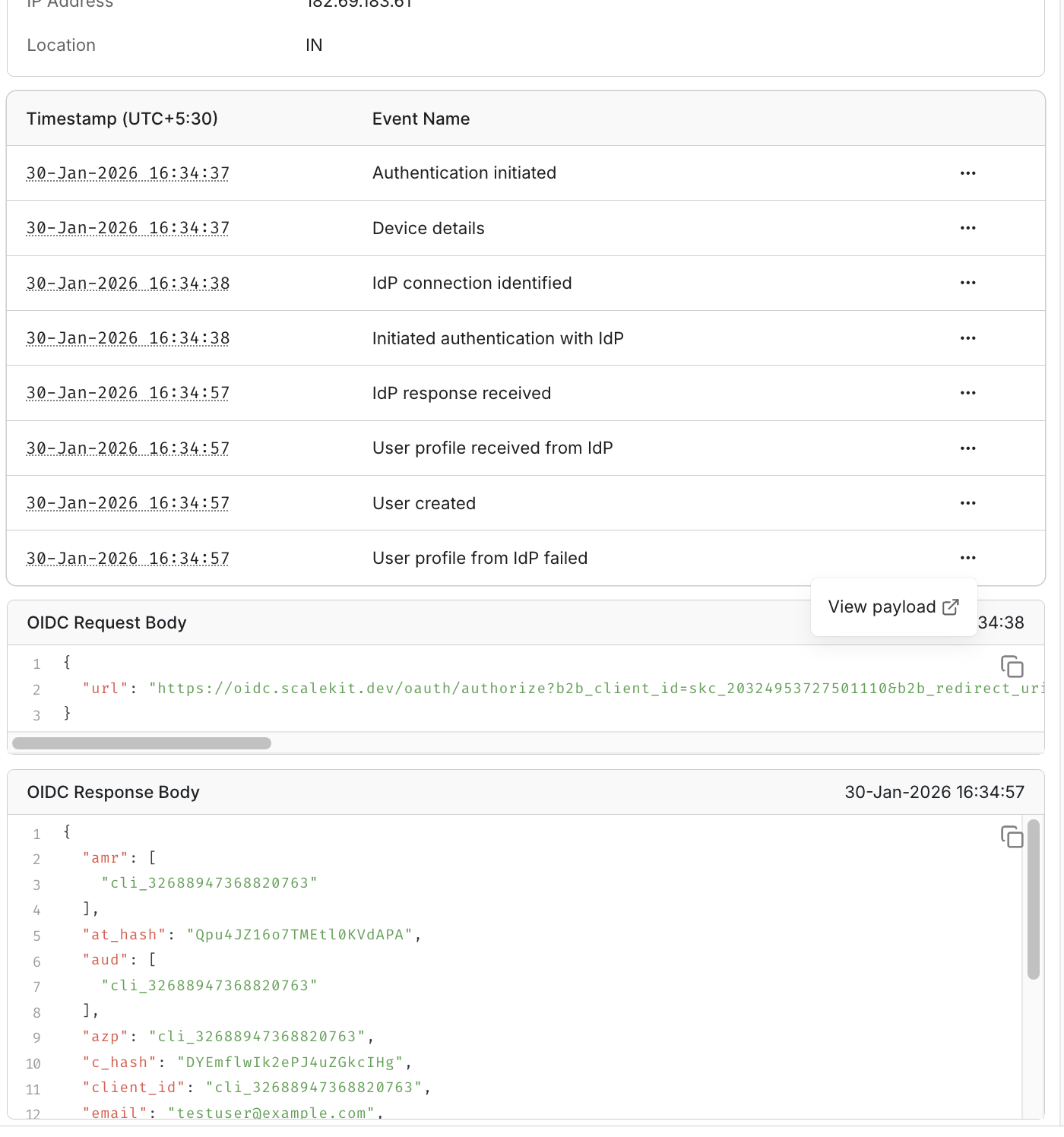
Reviewing these event views after each simulated login attempt lets you confirm that attribute values, assertion URLs, and signatures are processed as expected before moving to the production SSO configuration.
After opening an individual authentication event, the next step is inspecting the request and response payload summaries. This view shows the structured data exchanged during the SSO flow, rather than just the status label. Rather than reading raw XML or token strings, the dashboard surfaces key values such as identifiers, attributes, and validation outcomes in a readable format.
Payload inspection becomes necessary when authentication reaches the assertion stage but fails during attribute mapping or authorization. The objective is to confirm that expected fields, such as email, NameID, or default role, are present and correctly formatted before modifying certificates, metadata, or redirect URLs.
Recommended: Implement social logins for enterprise applications
Inspecting payload summaries immediately after each test attempt confirms whether the Identity Provider is sending the expected attributes and whether the application is interpreting them correctly.
After validating user-initiated login and reviewing payload details, the next step is to test flows that start from the Identity Provider and intentionally trigger failures. This ensures the application handles authentication correctly, even when login does not begin from the product’s own login screen and when validation rules are not met.
IdP-initiated testing confirms that the Assertion Consumer Service endpoint, audience values, and attribute mappings are accepted when the redirect originates externally. Intentional error scenarios help verify how the system responds to missing attributes, incorrect assertion URLs, or signature mismatches without waiting for these conditions to occur during real customer onboarding.
When simulating failures, change only one validation layer at a time so the resulting error can be traced to a single cause. Avoid combining multiple changes during a single test run.
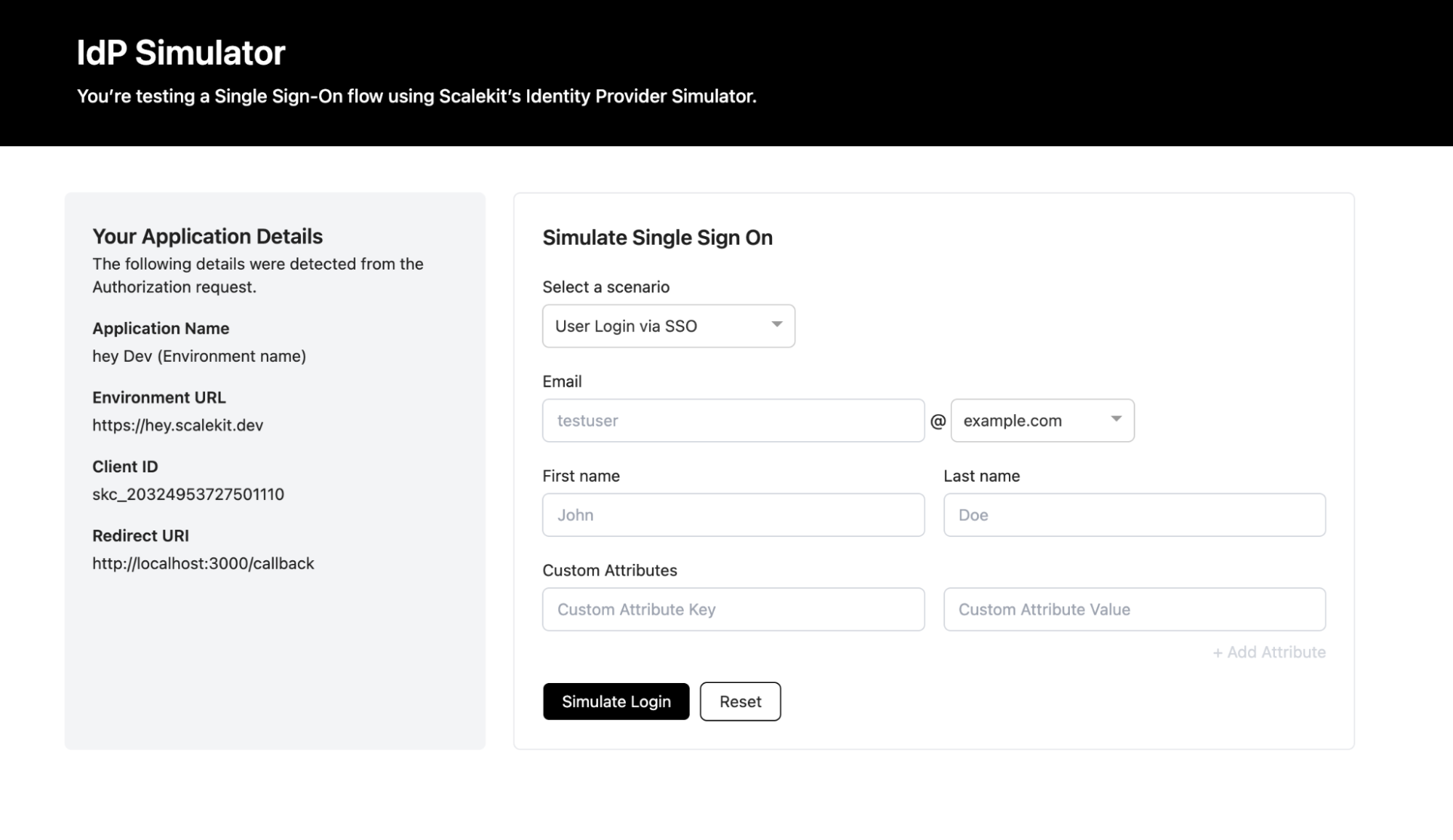
This view initiates authentication directly with the Identity Provider instead of the application's login screen, enabling external redirect validation.
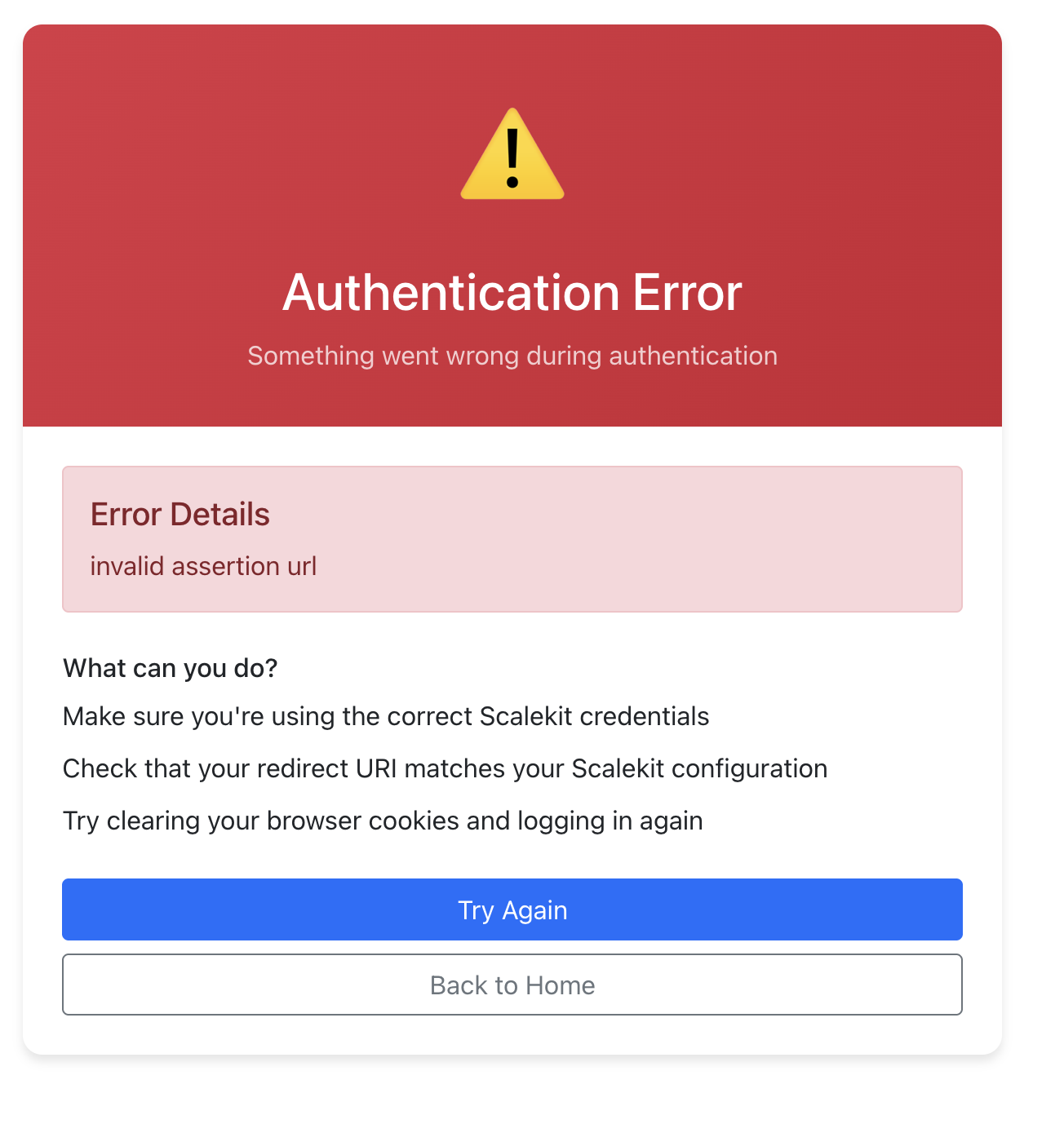
This screen shows a rejected authentication attempt with visible error codes and validation checkpoints.
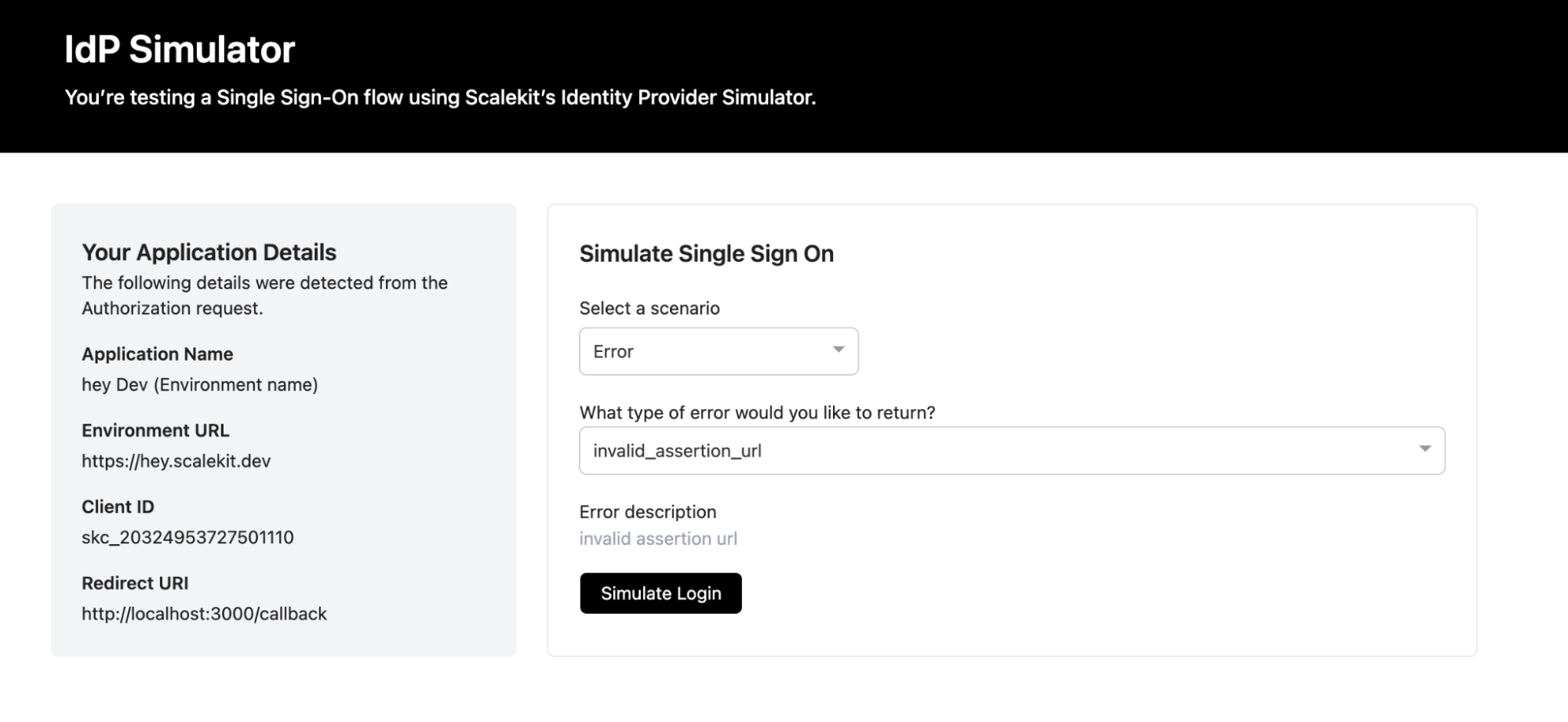
This error is intentionally triggered using the IdP emulator to replicate a validation failure during testing and observe how it appears in the authentication logs.
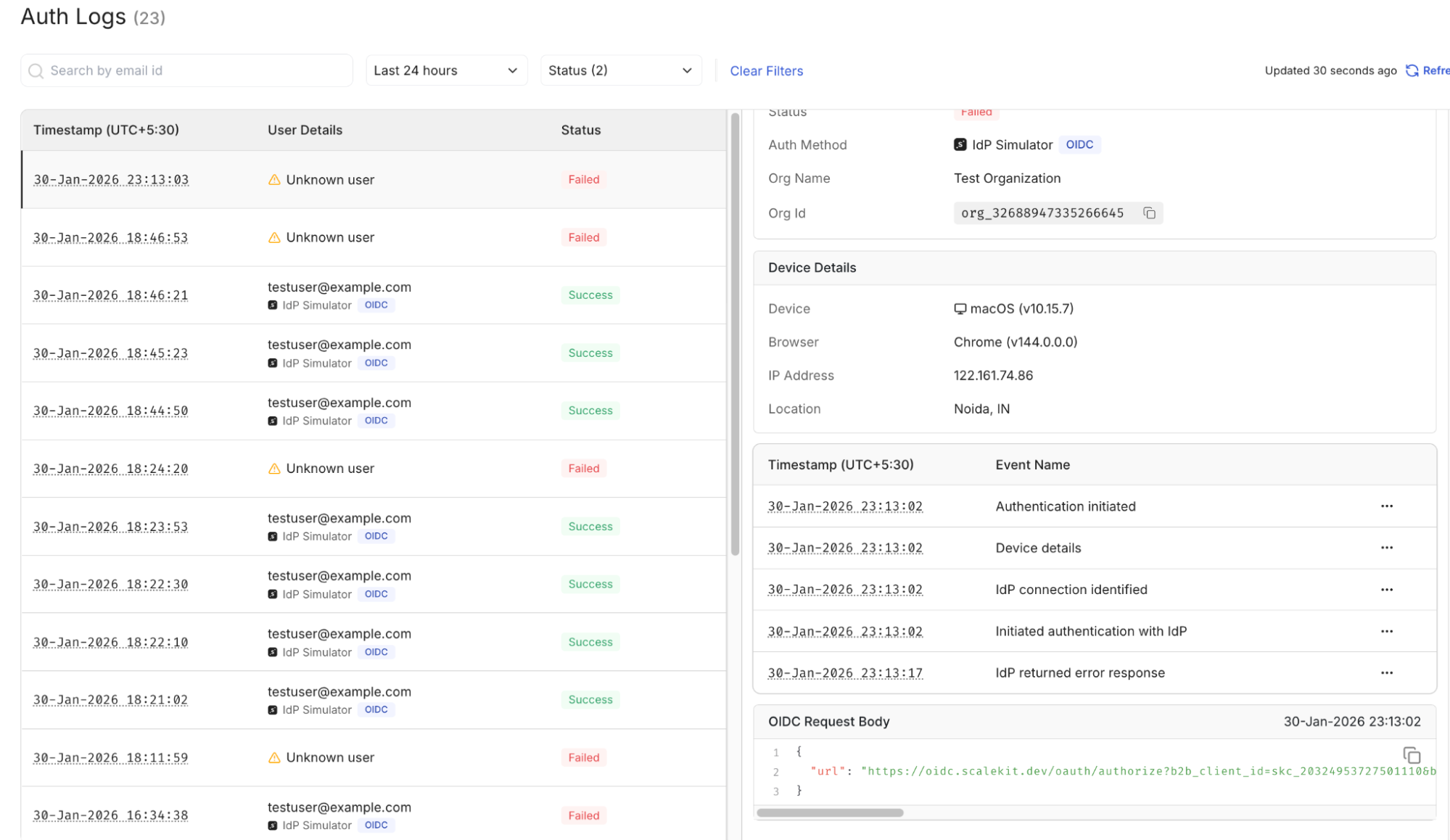
Inspecting the log entry reveals which validation layer rejected the assertion attribute mapping, signature verification, or authorization.
Since this failure was intentionally created using the emulator, the next step is to remove or correct the simulated change rather than modify real production settings. Re-enable the removed attribute, revert the temporary change to the assertion URL, or switch back to the valid metadata used before the test.
Only the specific validation layer that was altered for simulation should be updated. Avoid changing multiple parameters at once, as the purpose of this step is to confirm that the same authentication path succeeds once the intentional error condition is cleared.
Re-running the same authentication flow after removing the simulated error condition should now result in a successful login. This confirms that the earlier failure was tied to the intentionally introduced validation change rather than a deeper configuration issue.
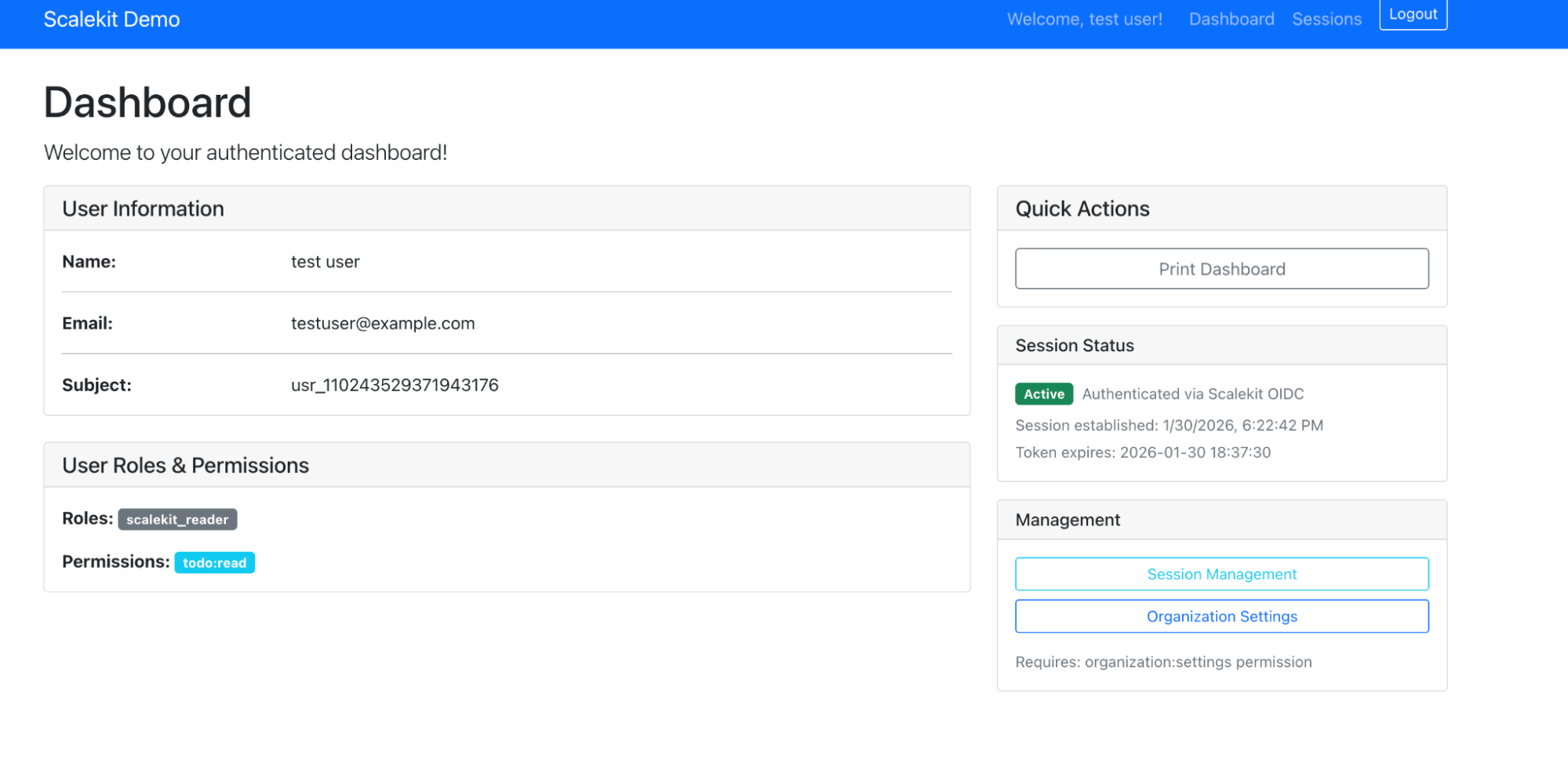
With both failure and success states observed under the same configuration path, the SSO testing loop is considered validated.
After testing user-initiated and IdP-initiated flows, as well as intentional error scenarios, the final step is confirming that the corrected configuration behaves consistently. This stage is verification, not exploration. The same test organization and authentication path that previously produced failures should now complete without attribute gaps, signature errors, or redirect mismatches.
The focus is on consistency across repeated attempts, not a single successful login. If one attempt succeeds while another fails under identical conditions, the configuration layer remains unstable. Verification ensures that assertions are accepted, attributes map correctly, and authorization rules apply without manual overrides.
Running this checklist under the same organization context and configuration path confirms that the tested setup behaves predictably before switching back to the production organization.
SSO integrations rarely fail because of missing application logic. They usually fail due to minor configuration mismatches that only surface during real authentication attempts, such as missing attributes, incorrect assertion URLs, certificate drift, or role-mapping gaps. These issues can be confusing at first because redirects work and responses appear valid, yet a single validation layer silently rejects the assertion.
A structured testing approach changes how these failures are handled. Running authentication through a dedicated test organization, reviewing authentication events, inspecting payload summaries, and interpreting structured error codes provides visibility into each step of the exchange. Instead of repeatedly retrying the login or modifying multiple settings at once, developers can isolate the exact checkpoint that failed and adjust only the relevant configuration layer.
A stable SSO setup is defined by consistency rather than a one-time success. When the same authentication path succeeds repeatedly under controlled testing conditions, enabling SSO for production organizations becomes predictable instead of uncertain. The objective is not only to ensure login succeeds, but also to understand why it succeeds and to ensure the same validation path continues to behave correctly as configurations evolve.
A working SSO setup is defined by consistent results across repeated authentication attempts using the same configuration path that production users will follow, rather than a single successful login screen.
A test organization provides an isolated environment to run authentication attempts without affecting production users. In platforms like Scalekit, login flows are routed through a simulator so developers can safely validate redirects, attributes, and error scenarios.
Not necessarily. Many SSO platforms, including Scalekit, provide an IdP simulator or test-connection feature that supports both SP-initiated and IdP-initiated flows without coordinating with an external identity provider.
Authentication attempts usually appear in a dashboard as individual events with timestamps, request IDs, and status labels. In Scalekit, these events also include payload summaries and validation checkpoints for deeper inspection.
SSO validation includes multiple layers, such as signature checks, attribute mapping, audience matching, and timestamp verification. A well-formed response can still fail if one validation layer rejects it.
Inspecting request and response payload summaries inside authentication events helps confirm whether required attributes were sent and correctly mapped before modifying certificates or metadata.
Yes. Simulators and test triggers allow developers to validate Assertion Consumer Service URLs, audience checks, and attribute handling without depending on a customer’s identity provider configuration.
Testing should be rerun whenever certificates rotate, metadata changes, domains are added, or default roles are updated. Configuration drift can reintroduce previously resolved validation issues.
A configuration is considered stable when repeated authentication attempts with the same flow and settings consistently succeed without triggering validation errors or missing-attribute warnings.