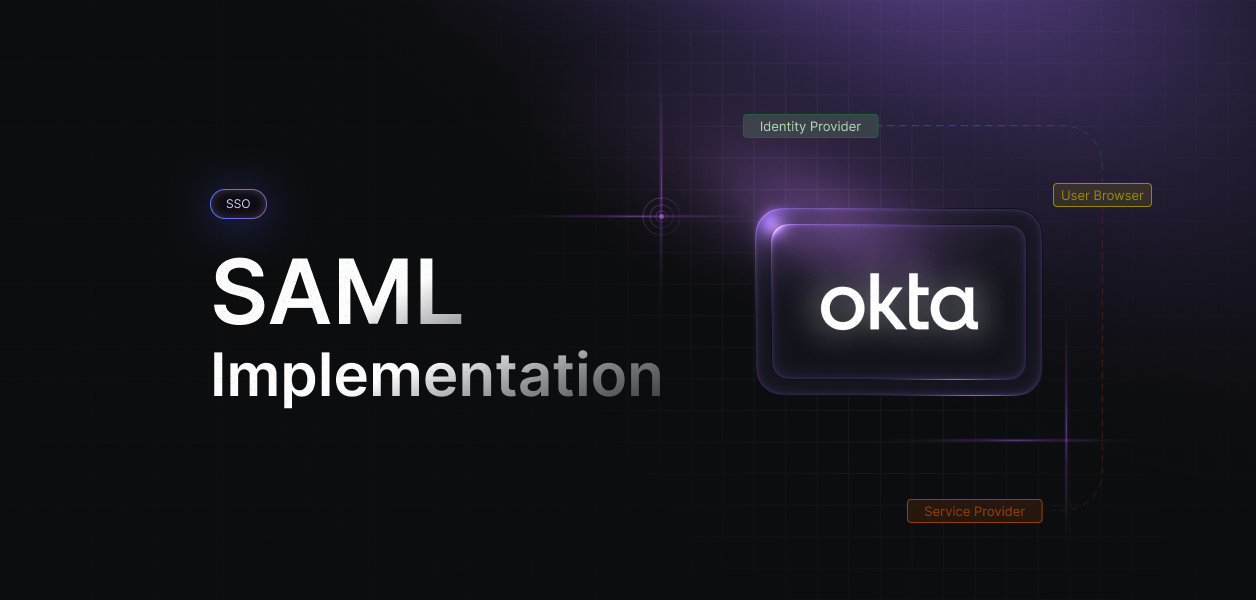


SAML authentication follows a consistent sequence: the Service Provider issues an AuthnRequest, the Identity Provider returns a signed Response, and the SP validates that Response against signature, trust parameters, routing rules, and timestamps. Debugging SAML requires understanding where these values originate and where they appear in the final XML. This blog focuses on troubleshooting, but if you want deeper details on AuthnRequest generation and flow semantics, refer to our SAML implementation guide.
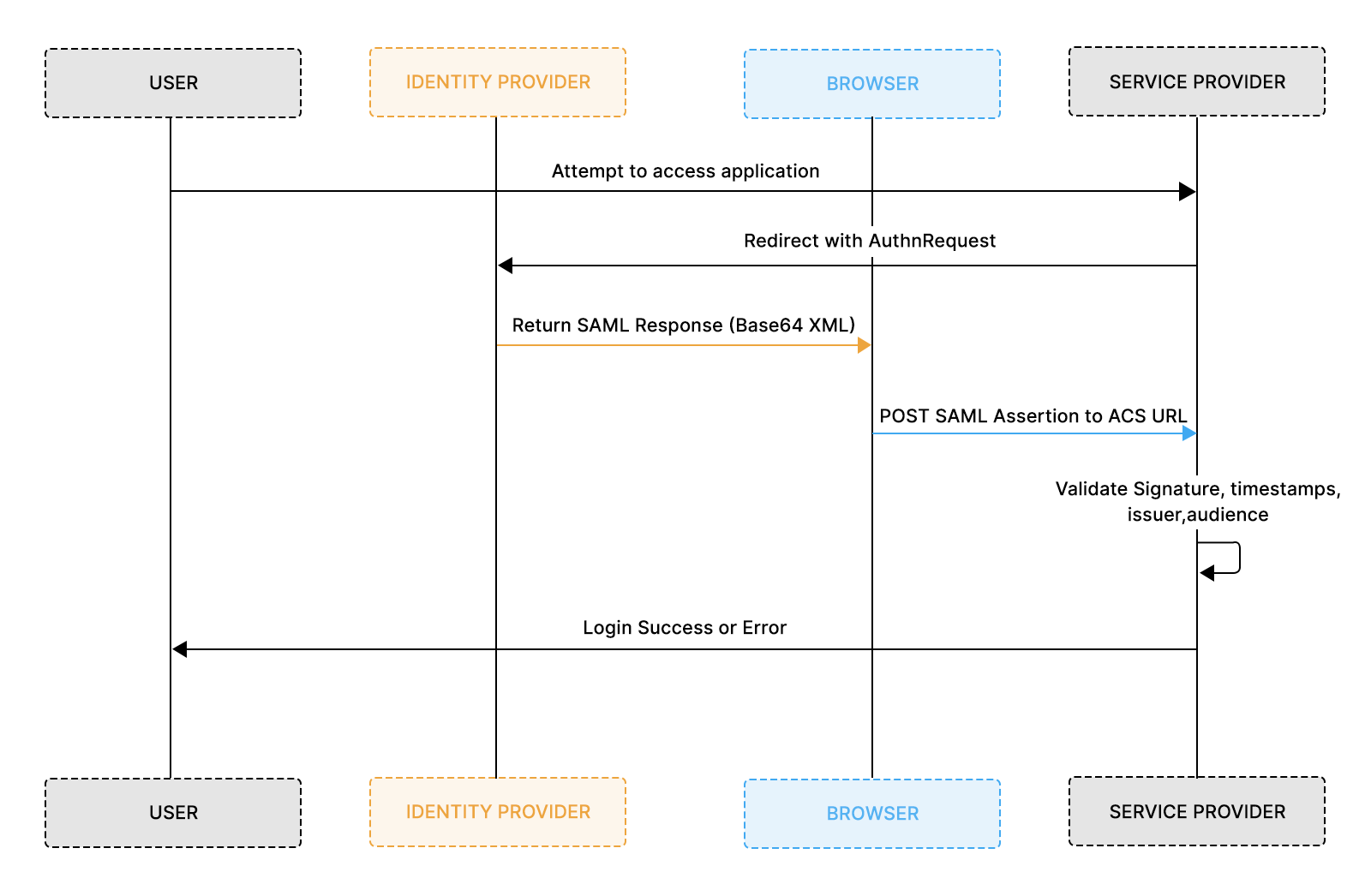
This flow provides the structural context you need to understand where failures occur within a SAML Response.
SAML errors break production login because authentication relies on strict, interdependent XML fields that must align perfectly. Enterprises usually discover this during onboarding or certificate rotation, when users suddenly lose access to dashboards, internal tools, or admin panels. Even a single-character mismatch, a trailing slash in the ACS URL, a rotated certificate, or a timestamp drift can invalidate the entire Response before the system even identifies the user.
Debugging becomes slow because both IdPs and SPs return generic, ambiguous error messages.
Common examples include:
Without structured logs, engineers must manually:
This creates unnecessary friction, slows incident recovery, and leads to repeated failures during enterprise onboarding.
Teams resolve SAML issues significantly faster when they focus on the specific trust fields that control acceptance: Issuer, Audience, ACS / Destination URL, Certificate fingerprints, NotBefore / NotOnOrAfter timestamps.
These fields decide whether the SP accepts or rejects the SAML Response, and when any of them drift, authentication fails at scale.
This guide turns those brittle trust points into a predictable troubleshooting workflow complete with fast checks, an error dictionary, debugging diagrams, and structured logging formats so teams can diagnose SAML issues quickly, consistently, and with confidence.
Most SAML outages are caused by a small set of mismatched fields that break trust between the Identity Provider and the Service Provider. These fields determine whether the SP accepts the incoming assertion, and they fail for predictable reasons: expired certificates, incorrect URLs, timestamp drift, or mismatched identifiers. During an active incident, checking these values first restores login functionality far faster than decoding the entire SAML assertion.
Quick validation works because these fields are easy to locate in both the IdP configuration and the decoded SAML response. Timestamps live in <Conditions>; identifiers appear in <Issuer> and <Audience>; and ACS URLs appear in the <Destination> attribute. When any one of these diverges, the entire authentication chain fails, even if everything else looks correct. These issues commonly surface during customer onboarding, metadata updates, environment switches, and certificate rotations.
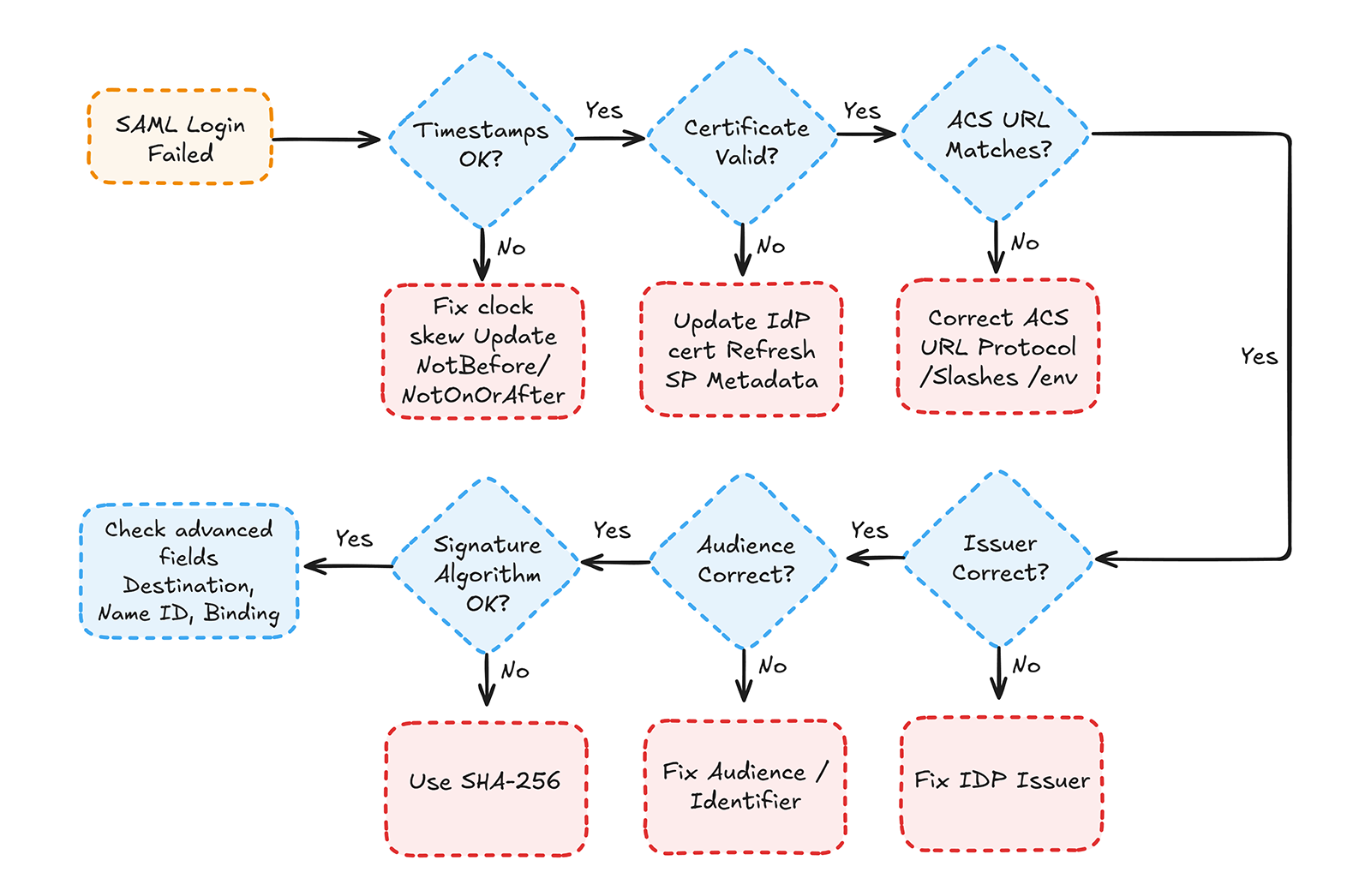
The checklist below provides a priority-ordered triage sequence used across major SSO platforms. Engineers can paste it directly into runbooks or incident channels. It isolates the highest-frequency failures first, shaving minutes off every debugging cycle. Combined with the decision diagram included below, it creates a simple mental model for rapidly eliminating the most likely causes of failure.
Note: SAML does not mandate a specific tolerance; most IdPs default to ~5 minutes, but 2 minutes is a stricter and more secure threshold.
Check for:
SAML becomes far easier to debug once you know where to find the pieces that usually break. Every error in the next section maps to a specific place inside the XML Issuer, Audience, NameID, timestamps, signature, and Destination. The snippet below shows a clean, minimal SAML Response with all high-value fields highlighted through structure. Keep this close while reading the error dictionary; it will help you locate issues instantly.
Now that you know where each field sits, let’s fix every error one by one.
The SAML Error Dictionary is the core reference for diagnosing SSO failures in this guide. Each error entry follows a predictable structure: a short, focused summary of what the error means, the root causes that typically trigger it, and a combined “where to check + how to fix” section so teams can validate and resolve issues quickly. Wherever relevant, a Scalekit insight is added to show how the platform surfaces the exact fields involved, making the debugging experience faster and more transparent.
Every error is structured the same way:
This keeps every error explanation compact, readable, and immediately actionable, ideal for both production incident response and onboarding new enterprise IdPs.
This error occurs when the Identity Provider (IdP) sends the SAML Response to an ACS URL that does not exactly match the Service Provider’s (SP) configured endpoint. Because SAML validation requires character-perfect matching, including protocol, domain, path, and trailing slash, any small discrepancy causes the SP to reject the Response before the user identity is evaluated. This is a routing/configuration drift issue, not a cryptographic failure.
Inspect the Destination="..." attribute inside the <Response> and compare it character-for-character with the ACS URL in the SP metadata.
Fix:
Scalekit makes this error extremely easy to diagnose: in the SSO configuration panel, it displays both the ACS URL you configured and the Destination returned by the IdP side by side, highlighting mismatches instantly. You can see this in the Authentication Logs as well. Refer to the debugging section below for where Scalekit displays these fields inside Authentication Logs.
This error occurs when the IdP signs the SAML Response with an expired X.509 certificate. Since SAML trust depends on valid certificate timelines, the SP rejects the Response even if all other fields are correct. This usually happens when certificate rotation is delayed or when the SP is still using outdated metadata.
Inspect the <X509Certificate> inside the <ds:Signature> and decode it to confirm the notBefore and notAfter values.
Fix:
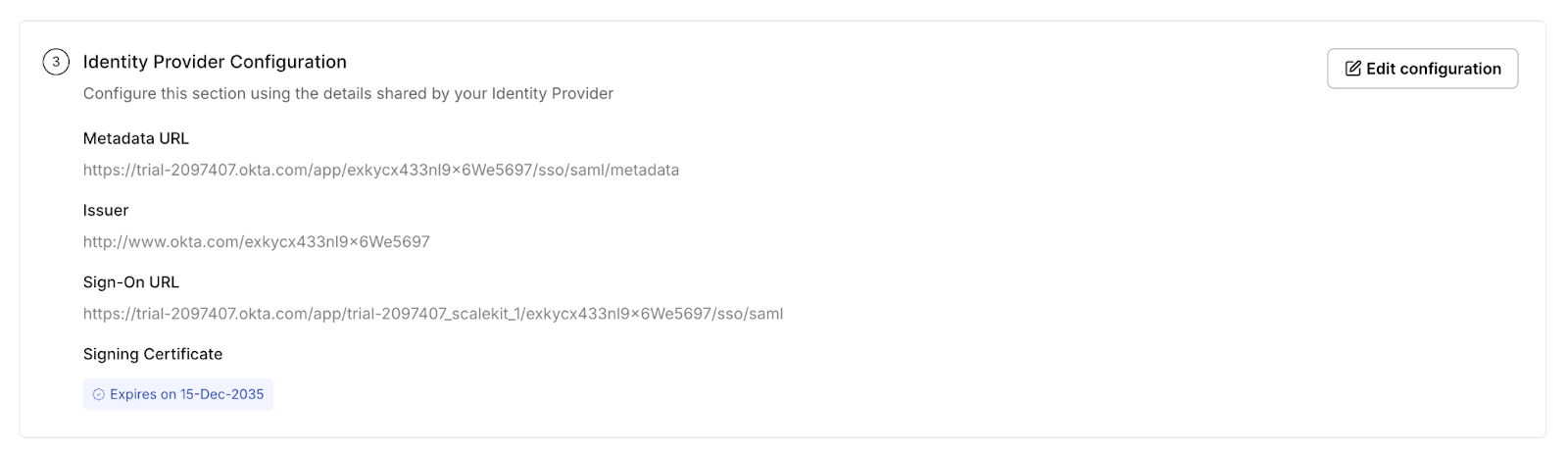
Scalekit simplifies this by displaying certificate validity and expiry directly in the Identity Provider Configuration and highlighting signature failures in Authentication Logs. You can refer to the debugging section below to see exactly where these fields appear.
This error occurs when the SP cannot parse the SAML Response because the decoded Base64 payload is not valid XML. This usually happens when the XML is truncated, required elements like <Response> or <Assertion> are missing, or the IdP used the wrong binding. The failure occurs before any trust or identity checks.
Decode the SAMLResponse and confirm it contains a complete <Response> element with a nested <Assertion> element. SP logs often include messages such as “malformed XML” or “unexpected root element.”
Fix:
Scalekit simplifies this by showing the raw SAMLResponse, the decoded XML, and the binding used directly in Authentication Logs, making structural issues immediately obvious. The Identity Provider configuration also exposes metadata values that are helpful when incorrect apps or incorrect metadata cause malformed responses. You can refer to the debugging section below to see where Scalekit surfaces these fields.
This error appears when the SP can parse the Response but rejects the Assertion itself. The Assertion is structurally valid, but key trust fields, such as timestamps, Issuer, Audience, or NameID, do not meet the SP’s validation rules. This is a logical validation failure, not an XML parsing issue.
Inspect <Assertion> → <Conditions> for timestamp validity and verify <Issuer> and <AudienceRestriction> values. Confirm that a valid <NameID> exists under <Subject>.
Fix:
Scalekit makes these failures easy to diagnose by showing timestamp evaluations, Issuer/Audience comparisons, and NameID/attribute mapping inside the decoded Assertion. Attribute expectations are displayed directly in your configuration, making mismatches immediately visible. Refer to the debugging section below to see how these fields appear in Scalekit.
This error occurs when the SP can read the SAML Response but cannot verify its digital signature. The XML is structurally valid, but the certificate, algorithm, or signed element does not match what the SP expects. Signature failures always indicate a trust alignment problem rather than a formatting issue.
Inspect the <ds:Signature> block in the Response or Assertion. Verify the embedded <X509Certificate> and the SignatureMethod algorithm, and compare the fingerprint with the one configured on the SP.
Fix:
Scalekit simplifies signature debugging by highlighting certificate details, algorithm mismatches, and signature validation results directly in Authentication Logs. The Identity Provider Configuration also shows the active signing certificate, making outdated or incorrect metadata immediately visible. Refer to the debugging section below to see where these fields appear in Scalekit.
This error occurs when the <Issuer> in the SAML Response or Assertion does not match the IdP EntityID configured by the SP. Even if signatures and timestamps are valid, the SP rejects the Assertion because it appears to come from an unknown or untrusted IdP. This typically happens due to the wrong IdP app, renamed EntityIDs, or mixing staging and production environments.
Check the <Issuer> value inside both the <Response> and <Assertion> and compare it to the IdP EntityID stored in SP metadata.
Fix:
Scalekit helps by displaying the active IdP EntityID directly in the Identity Provider Configuration and highlighting mismatched Issuer values in Authentication Logs. You can refer to the debugging section below to see exactly where these trust fields appear.
This error occurs when the <Audience> inside the Assertion does not match the SP’s configured EntityID or Audience value. The SP interprets the Assertion as issued for a different service, resulting in immediate rejection even if the rest of the Assertion is valid. This is one of the most common enterprise onboarding failures.
Inspect <AudienceRestriction> → <Audience> and compare it directly to the SP’s EntityID or Audience defined in metadata.
Fix:
Scalekit surfaces the configured SP EntityID and the Audience received inside the decoded Assertion, making mismatches easy to spot during testing. Refer to the debugging section below to see how these trust fields appear in Authentication Logs.
This error occurs when the IdP processes an AuthnRequest after its valid window has expired. Even if the Assertion itself is valid, the SP rejects the Response because it no longer matches an active login attempt. This typically occurs due to delays in redirection or clock drift between the IdP and the SP.
Check SP logs for the AuthnRequest timestamp and compare it with the processing time recorded by the IdP. Look for entries such as “stale request” or “AuthnRequest too old.”
Fix:
Scalekit helps by showing request and response timestamps together in Authentication Logs, making it easy to see when the Response exceeded the allowed window. You can refer to the debugging section below to see how these timestamps are surfaced.
This error occurs when the timestamps in the Assertion fall outside the acceptable tolerance relative to the SP’s system clock. Even a small drift can make the Assertion appear “not yet valid” or “already expired,” causing the SP to reject it despite otherwise correct metadata, audience, and signature.
Inspect <Conditions> → NotBefore and NotOnOrAfter in the Assertion and compare them with the SP’s local system time. SP logs often include messages such as “clock skew,” “assertion expired,” or “assertion not yet valid.”
Fix:
Scalekit makes time-related failures easy to spot by displaying evaluated timestamps and highlighting “not yet valid” or “expired” conditions directly in Authentication Logs. Refer to the debugging section below to see where these evaluations appear.
This error occurs when the Assertion does not contain a <NameID> inside <Subject>, leaving the SP unable to identify the user. Even if the Assertion is otherwise valid, the SP cannot map the login attempt to a user account without NameID.
Inspect the <Subject> block and confirm the <NameID> element exists and uses a format supported by the SP.
Fix:
Scalekit helps by showing missing or incorrectly mapped NameID values directly in the decoded Assertion and by displaying the expected attributes in your configuration. Refer to the debugging section below to see how NameID-related fields appear in Authentication Logs.
This error occurs when the IdP sends a <NameID> using a format the SP does not accept. Even if the NameID value is correct, the SP rejects the Assertion because the format (emailAddress, persistent, transient, etc.) doesn’t match its configured requirements.
Inspect <NameID Format="..."> and compare the format against the SP’s supported values in metadata or configuration.
Fix:
Scalekit surfaces NameIDFormat mismatches by displaying the exact format returned in the Assertion and comparing it against the expected settings shown in your configuration. You can refer to the debugging section below to see where these values appear in Authentication Logs.
This error occurs when the Destination attribute in the SAML Response does not exactly match the ACS URL configured on the SP. SAML requires character-for-character matching; even small differences in protocol (http vs https), trailing slashes, or mixing staging and production cause the SP to reject the Response immediately.
Inspect the Destination="..." attribute in the <Response> and compare it directly to the ACS URL defined in the SP metadata.
Fix:
Scalekit simplifies this by showing the configured ACS URL and the Destination received from the IdP side by side in both the SSO configuration and the Authentication Logs, making routing mismatches easy to identify. Refer to the debugging section below to see where these fields appear.
This error appears when the RelayState returned by the IdP does not match the RelayState sent by the SP. Since RelayState ties the SAML Response to a specific login flow or redirect target, missing, altered, or truncated RelayState prevents the SP from correlating the Response with the original request, even if the SAML Response itself is valid.
Compare the RelayState sent in the AuthnRequest with the RelayState returned in the Response. SP logs typically show “relaystate mismatch” or “missing relaystate” when correlation fails.
Fix:
Scalekit clearly displays the RelayState sent and the RelayState returned inside Authentication Logs, making mismatches immediately visible. Refer to the debugging section below to see how Scalekit surfaces these correlation values.
This error occurs when the SP receives an encrypted Assertion but fails to decrypt it using its private key. The Assertion itself may be correct, but if the IDP encrypts it with the wrong SP certificate or if the SP uses an outdated or mismatched private key, decryption becomes impossible.
Look for SP log messages like “decryption failed,” “key mismatch,” or “unable to decrypt assertion.” Confirm which certificate the IdP is using by checking its SAML configuration or metadata.
Fix:
Scalekit makes this easier by surfacing the exact SP encryption certificate, showing whether the IdP is encrypting with a stale or mismatched key, and flagging decryption failures directly in Authentication Logs. The debugging section below shows where these certificate and key details appear in Scalekit.
This error occurs when the InResponseTo value in the SAML Response does not match any active AuthnRequest generated by the SP. Even if the Assertion is valid, the SP rejects it because it cannot link the Response to the correct login session.
Check the InResponseTo="..." value inside the <samlp:Response> and compare it with the SP’s stored Request ID. Logs often show “no active request” or “unknown InResponseTo.”
Fix:
Scalekit displays the SP-generated Request ID and the IdP-returned InResponseTo side by side in Authentication Logs, making mismatches immediately obvious. The debugging section below shows where this correlation data appears.
Most SAML issues become clear the moment you open Authentication Logs in Scalekit. Each log shows the complete authentication timeline, the IdP connection, the SAMLResponse received, the validation steps, and the exact point where the request failed. Errors such as invalid signatures, timestamp failures, issuer mismatches, incorrect ACS URL, missing RelayState, or malformed XML are displayed directly in this viewer, without requiring manual decoding or access to server logs.
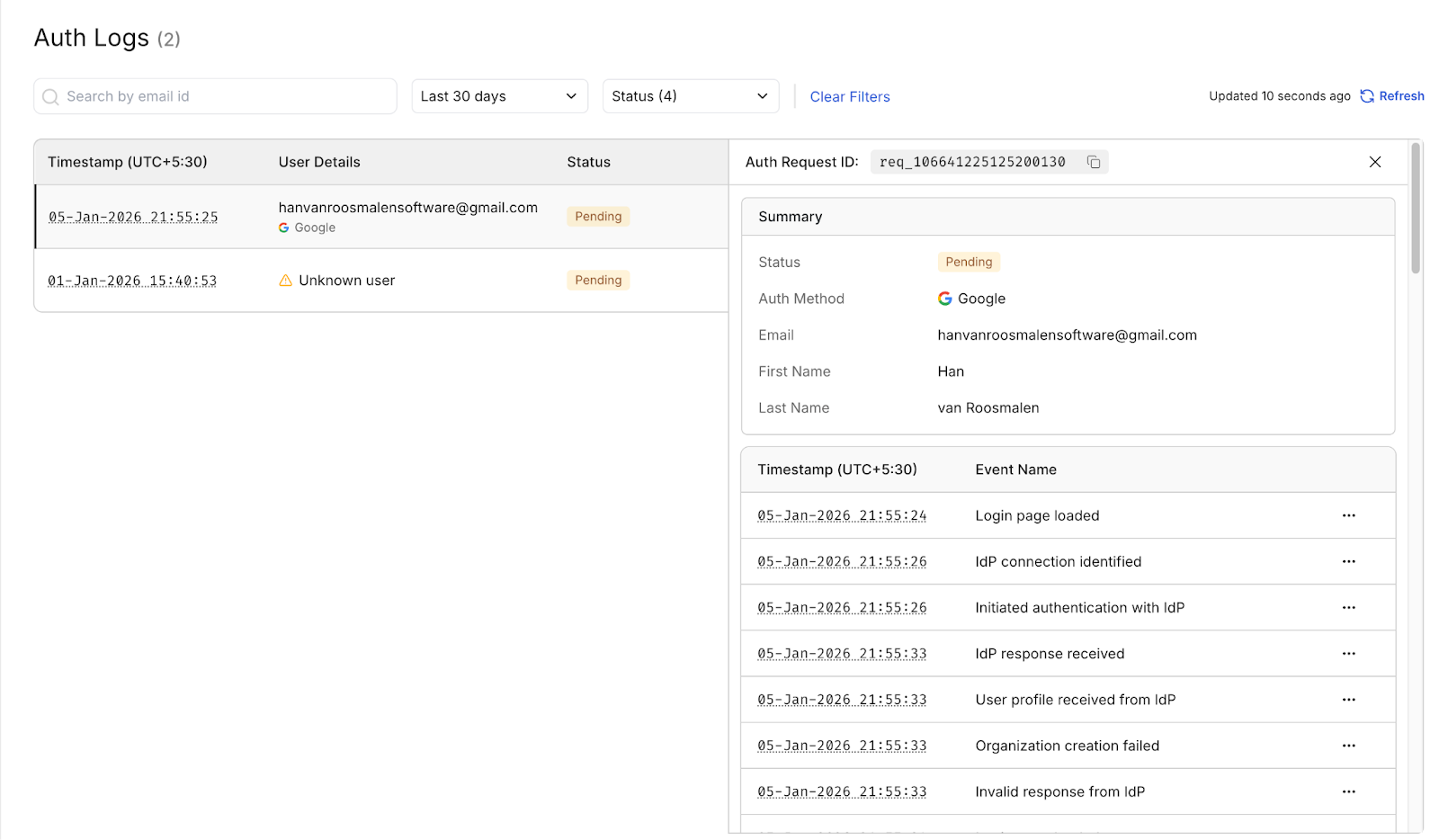
When an error relates to configuration rather than runtime, Scalekit exposes those values in the Identity Provider configuration panels. This includes the Metadata URL, Issuer, ACS/SSO URLs, and the signing certificate with its expiry. Issues such as certificate expiration, incorrect Issuer, outdated metadata, or mismatches in the ACS URL can be identified immediately in this section.
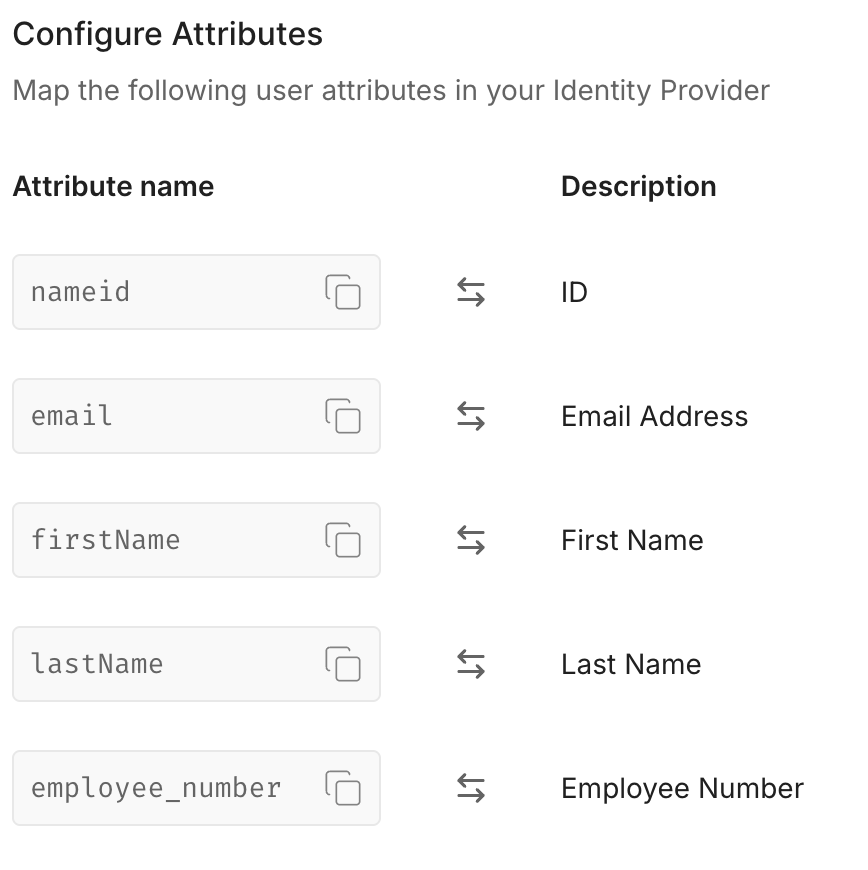
The same applies to attribute-related failures. If an Assertion is invalid because a NameID is missing or a required attribute wasn’t mapped, Scalekit’s Attribute Mapping view makes this obvious. You can see exactly which attributes the SP expects (nameid, email, firstName, etc.) and compare them with what the IdP is actually sending.
Together, the Authentication Logs and configuration panels give you everything you need to quickly diagnose SAML issues. Runtime failures surface in the logs; configuration-related problems appear in the metadata and attribute panels. This is why each error in the dictionary includes a short Scalekit Insight: the platform already exposes the specific field on which the error depends.
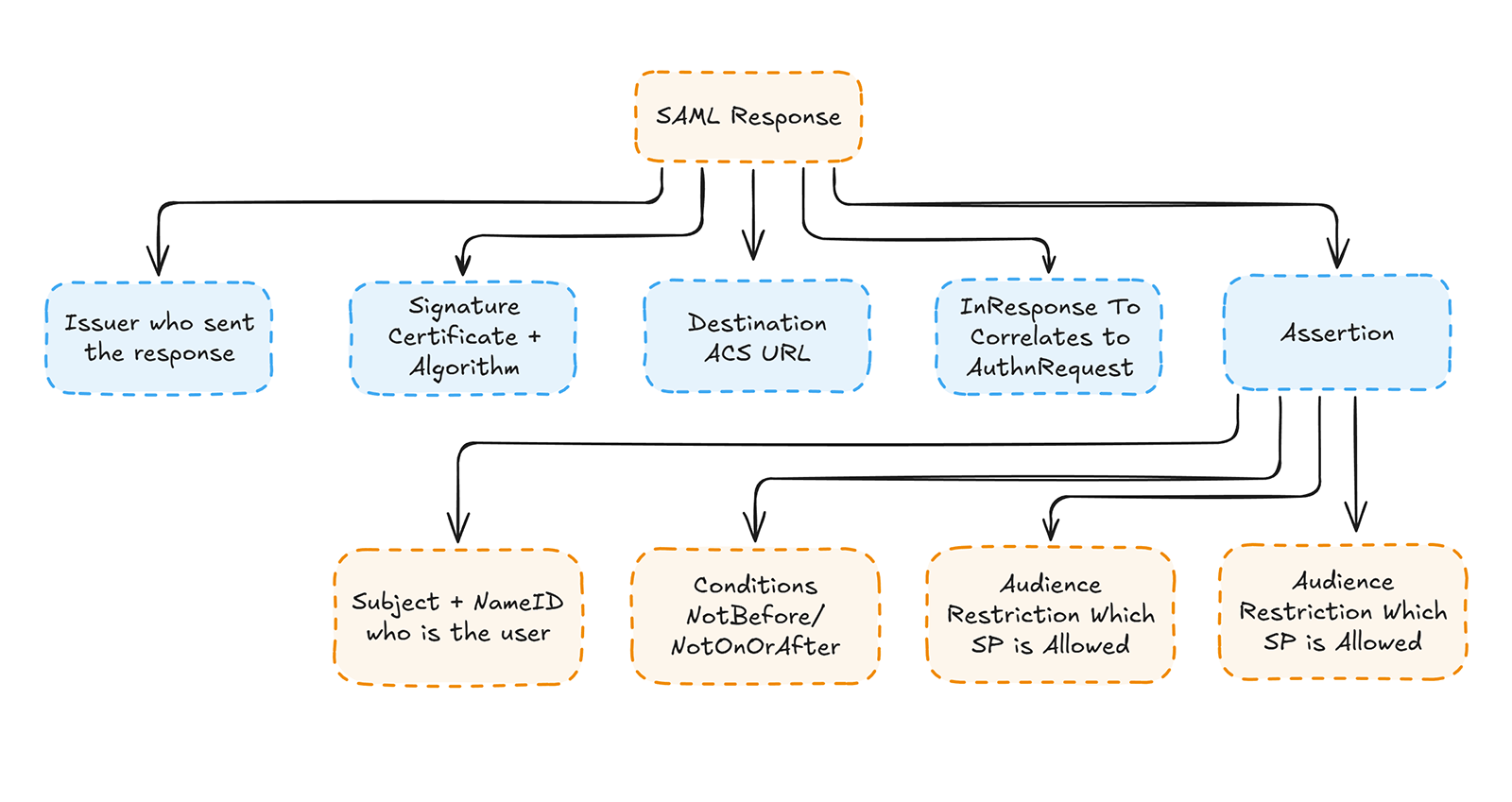
Debugging SAML becomes significantly easier when you understand where each trust-sensitive field is located in the SAML Response. Every SSO failure ultimately traces back to a mismatch in Issuer, Audience, timestamps, Destination, NameID, or signature. These fields appear in predictable locations within the SAML XML. Knowing how to navigate the structure turns debugging from guesswork into a systematic, deterministic process.
SAML Responses follow a stable, layered anatomy that separates transport-level information from user identity and trust assertions. The top-level <Response> defines routing and request correlation, while the inner <Assertion> carries identity, timestamps, and access conditions. The <Signature> block secures one or both of these layers, depending on how the IdP is configured. When engineers understand these boundaries, they can quickly isolate misconfigurations caused by certificate rotations, metadata drift, timestamp skew, or IdP template issues.
Your debugging workflow becomes simpler when you consistently inspect the same fields in the same order. This section provides a blueprint: where each component resides, how to correctly decode a SAML Response, and which XML nodes correspond to each common failure. Combined with the 60-second checklist and error dictionary, this anatomy map enables developers to confidently debug any SAML issue, including rare edge cases encountered in complex enterprise IdP setups.
SAML Responses are Base64-encoded by design. Identity Providers send the assertion as a Base64 string inside an HTML form POST to your ACS URL. This keeps the XML compact, safe for transport, and compatible with browser redirects.
To inspect the actual XML and debug errors, you must decode this Base64 string into a readable file.
This command converts the encoded blob into a proper XML file.
Pretty-printing fixes indentation and visibility of nested elements, making it easier to locate Issuer, Audience, timestamps, NameID, Conditions, and Signature blocks.
This decoded file becomes your primary debugging artifact.
You will use it to match errors to fields in the SAML Response and Assertion.
Local signature verification lets you confirm whether the SAML Response is cryptographically valid before the SP’s code, SDK, or middleware interferes. This is especially useful for debugging signature mismatches, expired certificates, incorrect metadata, or XML wrapping attacks where the IdP signs one element but the SP parses another.
Successful verification looks like:
A failed verification usually shows:
SAML signatures fail immediately if the IdP’s signing certificate is expired or rotated without updating the SP metadata. Certificate expiry is one of the top causes of broken SSO, especially during enterprise IdP rotations, where new certificates are published but not propagated to all applications.
You should see something like:
If the IdP rotated keys recently, your SP may be using a cert that is not yet valid.
Example output:
This helps confirm whether the certificate in your metadata matches what the IdP actually used.
Example output:
You’ll use this fingerprint to compare against the fingerprint in your SP configuration.
Manual XML scanning works for single incidents, but it becomes slow when debugging multiple SAML flows, onboarding many customers, or validating fresh IdP metadata. For teams that prefer automation, this small Python utility pulls the highest-signal fields Issuer, Audience, and NameID right out of the decoded SAML Response.
This script is especially useful when:
Example output:
These three fields alone eliminate many common errors:
SAML errors become harder to diagnose when logs capture the wrong fields or hide the information that actually determines trust. Most production incidents drag on because teams only log the decoded response or the error message returned by their SAML library. That information is rarely enough. The fields that matter, timestamps, identifiers, certificate fingerprints, signature algorithms, and request/response IDs, must be captured explicitly to trace failures across the identity provider and service provider.
SAML logging works best when you record high-signal fields that quickly reveal the root cause. These fields provide the context needed to distinguish between a certificate mismatch, an Issuer/Audience mismatch, a routing error, or a timestamp issue. Capturing them as structured JSON enables filtering across sessions, building dashboards, and running diff-based checks during certificate rotations or metadata refreshes. Good logs dramatically reduce time-to-resolution, especially when debugging enterprise SSO.
Effective SAML logs follow two principles: log the fields that determine trust and protect the fields that identify users. You should log the cryptographic and routing metadata, not full assertion payloads containing user data or attributes. Redaction is essential, but you can maintain utility by masking sensitive elements while preserving structure. The goal is simple: give developers enough information to understand failures without creating compliance or privacy risks.
These fields expose the root cause behind nearly every SAML failure. Log them consistently.
Required for correlating SP ↔ IdP flows. Essential for debugging invalid InResponseTo or RelayState issues
Required for signature validation, expiry checks, and cert rotations
Required for diagnosing Issuer/Audience mismatches, ACS URL issues, and wrong bindings
Required for debugging clock skew, expired assertions, and replay attempts
Required for summarizing the failure and powering dashboards
Together, these fields explain 90% of SAML validation failures without decoding the entire assertion.
SAML Assertions often contain identity data that should never appear in plaintext logs. Always mask or redact these values to stay compliant and avoid leaking user information.
Redact or mask these fields:
Recommended masking pattern:
Mask enough to hide PII while keeping the structure for debugging.
These values create a direct security risk and must never appear in logs:
If these leak, SSO security is compromised.
Redaction should remove sensitive values while preserving field structure, so developers can still understand the SAML flow during debugging. The simple redaction helpers below can be used to mask email addresses, persistent identifiers, NameID values, SessionIndex fields, and any user-related attributes within a SAML Assertion.
This masking approach can be extended to redact any other sensitive fields in your SAML assertions, as needed for your security or compliance requirements.
When a SAML error occurs, each failure type points to a specific field inside the SAML Response. Logging these fields ensures that developers can identify the root cause without decoding the entire assertion or guessing which part of the XML failed. This table maps the most common validation failures to the exact fields you must capture.
These fields give developers the signal they need to pinpoint issues immediately.
Many SAML incidents take far longer to resolve because critical fields are missing from logs. These are the mistakes that create blind spots during debugging:
Logging the right fields and avoiding the wrong ones makes SAML troubleshooting more predictable and less painful.
Most SAML issues can be resolved by inspecting the XML, comparing metadata, checking timestamps, and reviewing signatures. Escalation is necessary only when the response appears structurally correct, but the IdP and SP still disagree on trust parameters such as certificates, ACS URLs, or environment-specific values. In these cases, the goal is to provide a concise but complete packet so an IdP, SP, or vendor support team can reproduce the failure without guesswork.
A useful escalation packet includes three elements:
This is the minimal set required to verify whether the failure originated from metadata drift, certificate rotation, incorrect ACS routing, or a template mismatch on the IdP.
While providing these files, avoid sharing user-specific identity data such as NameID, attributes, or group memberships. Support teams need only the structural fields that determine trust, not the user profile. Likewise, never include private keys, decryption keys, cookies, MFA tokens, or HAR files with active credentials. Redacted assertion sections are acceptable as long as the trust-relevant parts remain intact.
When transferring the packet, use a secure channel: an encrypted ZIP, a time-limited link, or a provider’s secure upload form. Email and chat are not appropriate for SAML artifacts because they may contain certificates or internal identifiers.
Before escalating, determine where the issue belongs by following the validation flow already outlined: confirm the cryptographic layer, verify trust parameters, check routing values, and review timestamps. If all of these are correct, yet the failure persists, escalate with a complete diagnostic packet.
SAML failures feel unpredictable only when the underlying structure is unclear. Once you understand how the Response is formed, which fields determine trust, and which mismatches cause validation errors, the debugging process becomes systematic instead of trial-and-error. This guide gives a complete troubleshooting workflow: a fast triage checklist, an error dictionary, response anatomy, logging strategies, redaction rules, and a clear escalation path.
The pattern is always the same: validate signatures, validate trust parameters, validate routing, validate timestamps, and escalate only when these layers all align. With consistent logging and accurate metadata, SAML becomes a deterministic system, one where nearly every failure can be traced to a single field in the XML. This makes SSO integrations more predictable, easier to maintain, and significantly faster to diagnose in production environments.
SAML (Security Assertion Markup Language) is an XML-based protocol that allows an Identity Provider (IdP) to authenticate a user and send a signed Assertion to a Service Provider (SP). The SP uses fields like Issuer, Audience, Destination, timestamps, and signatures to validate the Response. If any trust field is wrong, login fails even when the XML “looks” correct.
SPs validate multiple trust layers: signature, issuer, audience, destination, timestamps, and correlation fields. If even one of these fails, the SP rejects the Response regardless of the XML's formatting. Most cases are caused by metadata drift, outdated certificates, or incorrect ACS URLs.
Signature failures usually mean the IdP rotated certificates without updating metadata, the SP cached a stale fingerprint, or the wrong XML element is being signed (Response vs Assertion). Running xmlsec1 --verify locally is the fastest way to isolate which certificate or element mismatch is causing the failure.
Environment-specific fields ACS URL, EntityID, and Audience must match exactly. These values differ across dev, staging, and production. If an IdP app points to the wrong environment, the SP rejects the Assertion instantly. This is one of the most common onboarding failures.
This happens when the IdP and SP clocks drift or when the assertion validity window is too tight. Since SAML strictly enforces timestamps, even a small skew can make assertions appear “expired” or “not yet valid.” Sync both systems to NTP and check the NotBefore / NotOnOrAfter values in the decoded assertion.
Most IdPs don’t automatically map NameID. Some omit it entirely; others default to persistent IDs instead of emails. Set the correct NameIDFormat (often emailAddress) and ensure the attribute exists in your directory and is allowed by the IdP policy.
This happens when the IdP’s authentication succeeds, but the SP rejects the Assertion due to mismatches in Audience, Issuer, Destination, or signature. IdPs rarely validate SP-side trust fields, so they return “success” even when the SP cannot validate the incoming Response.
When IdPs rotate certificates, they often publish updated metadata, but SPs may still be using cached or outdated fingerprints. Until the SP refreshes metadata, signatures will fail even though the IdP is correctly using the new certificate.
IdP test modes often use preconfigured values (Issuer, Audience, ACS URL) that match sample applications rather than your own metadata. Production flows require exact identifiers. Switching to the real environment exposes mismatches that test mode masked.