

Imagine this: You’re a SDR juggling a dozen deals in your HubSpot CRM. As you dive into your day, you start realizing that tracking the latest updates on each deal, like changes in pipeline stages, new notes, or modified deal amounts, feels like you’re playing catch-up. Every morning, you spend valuable time checking each deal for updates, manually checking who owns what, and sending them follow-up reminders. This repetitive, manual work is not only time-consuming but also often leads to missed updates and late responses, making it difficult to stay on top of the pipeline. It’s draining, and, more importantly, it takes the focus away from real strategic work that drives results.
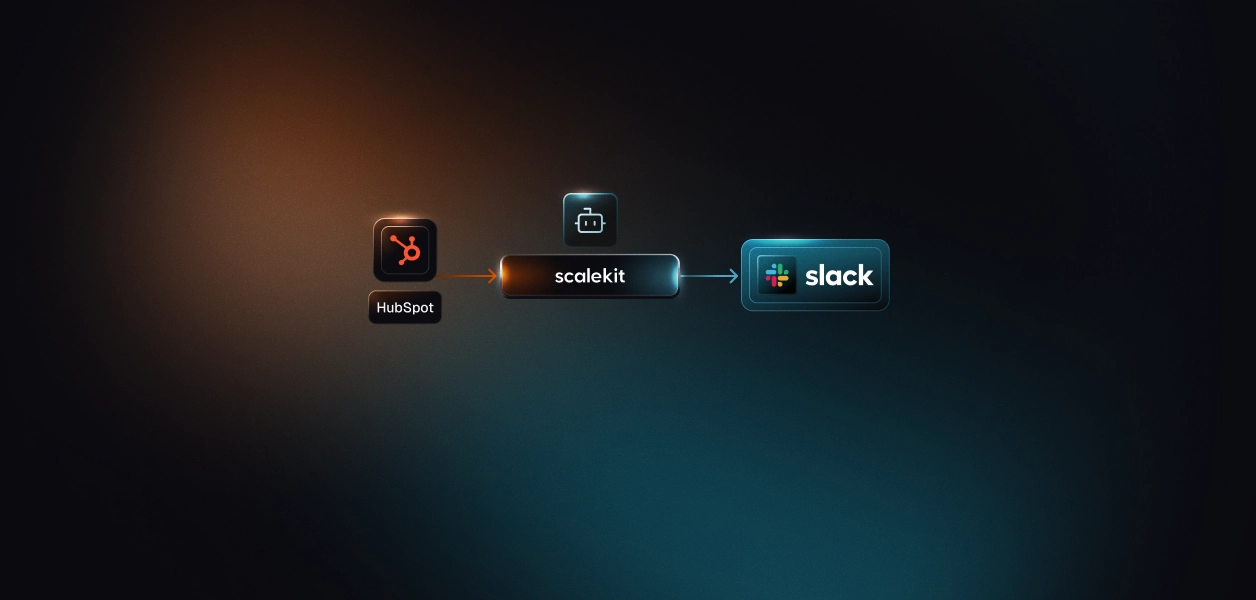
This is where something like a HubSpot to Slack daily CRM Digest agent comes into play. By automatically pulling the latest changes from HubSpot’s deals and sending customized notifications to sales reps directly in Slack, the system transforms a cumbersome manual process into a streamlined, automated routine. The digest summarizes all critical deal updates from the past 24 hours, delivering them straight to each deal owner's Slack DMs and, optionally, to a channel summary for the whole team. Not only does this save time, but it also ensures that the team never misses an important update. This means that the sales teams can prioritize high-value tasks, maintain clear communication, and focus on closing deals without the overhead of constant manual tracking.
In this guide, we’ll break down how the HubSpot to Slack daily CRM digest agent works. You’ll learn how to set up and configure the system for your needs, and keep your sales team up to speed with minimal effort. From understanding components like the HubSpot API and Slack Web API to how the application works in real time with delta windows and snapshots, we’ll guide you through the implementation and the logic behind it. By the end, you’ll be able to create your own automated CRM digest tool, improving team productivity and ensuring seamless communication in Slack.
In most sales teams, HubSpot serves as the system of record for managing deal pipelines, tracking engagement, and logging activities. SDRs and BDRs rely on it daily to see which leads have progressed, which deals have stalled, and what tasks or follow-ups are pending. But in practice, HubSpot can quickly become noisy, hundreds of deals may move through multiple stages, amounts may change, and owners may update notes or tasks throughout the day. Without an easy way to surface only what changed since yesterday, reps often spend time refreshing dashboards or clicking into individual records just to stay current. Important updates can slip through the cracks, especially when several team members share ownership of accounts or pipelines.
Slack, on the other hand, has become the go-to platform for real-time team communication. It’s where most teams collaborate, share updates, and get things done. But with all the constant messages and notifications, it’s easy for important CRM updates to get lost in the noise. This is where manual updates fall short: they’re unreliable, prone to errors, and do not integrate seamlessly with the tools teams already use, like Slack.
This section dives into the core challenge: how to provide timely, actionable updates about HubSpot CRM changes to the team without overwhelming them with irrelevant or duplicate information? This is where automated, focused, and organized notifications come into play, offering a solution to turn a chaotic manual process into a consistent, reliable, and much more efficient one.
The HubSpot to Slack Daily CRM Digest Agent was built to solve the pain of managing constant CRM updates by automating the entire process of retrieving, processing, and notifying relevant stakeholders about changes in their deals. This solution eliminates the need for manual intervention and ensures timely, actionable updates are always at hand, right where the team works, in Slack.
At a high level, the agent fetches recently modified HubSpot deals, for example, deals that have changed stage, updated amounts, reassigned owners, or had new notes added, and delivers a summary of those updates to Slack through automated notifications. However, there’s more to it than simply pulling data and posting messages. The agent handles authentication, pagination, delta detection, and message formatting under the hood. Let’s break down the complete flow, the technologies involved, and how these pieces integrate into one seamless automation.
1. Setup and configuration
At the start, the agent loads environment variables from a .env file and verifies required configurations, including Scalekit API credentials and HubSpot and Slack’s Scalekit identifiers. These credentials are crucial for establishing connections to both platforms. If a connection is missing, the agent stops execution and prompts the user to authenticate via Scalekit’s dashboard, ensuring that everything is correctly set up before the process starts.
2. Fetching HubSpot deals
Once the connections are validated, the agent begins by querying the HubSpot CRM via the HubSpot Deals API. The agent makes a hubspot_deals_search API call, filtered by a time window, typically 24 hours (but configurable via the environment variable DIGEST_LOOKBACK_HOURS). This means that it looks for any deals modified within the specified window. The API returns a paginated set of results, with key details for each deal, such as:
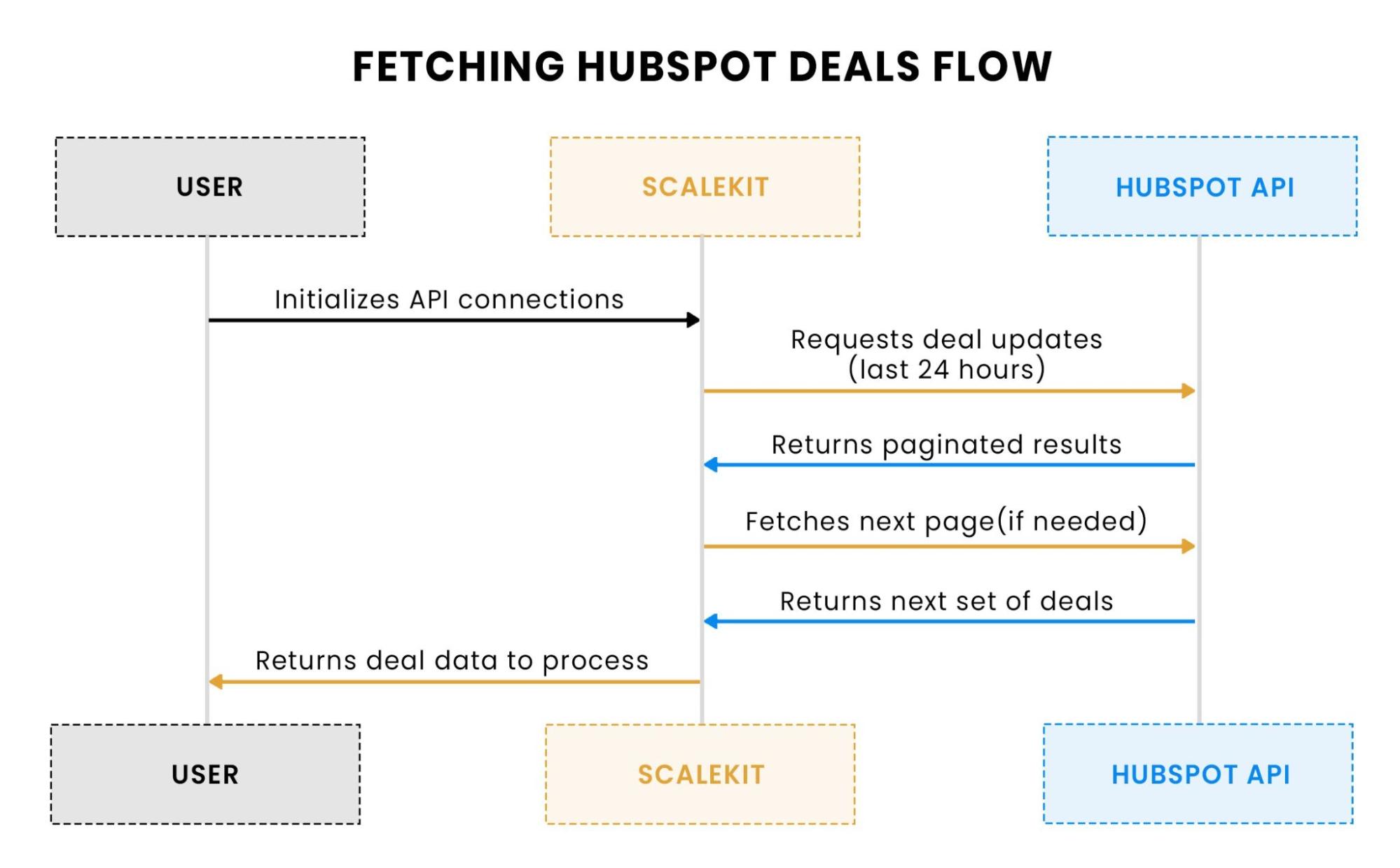
This flow shows the sequence of interactions between the User, Scalekit, and HubSpot API for fetching deal updates. Scalekit handles the authentication and API requests, ensuring all paginated data is retrieved and returned to the user for further processing.
3. Scalekit plays a key role here by managing the authentication and API calls. It simplifies interacting with HubSpot and Slack via its scalekit-sdk-python. It handles the connecti
on and ensures API calls are executed properly, retrying on transient errors (e.g., rate limits, timeouts). This ensures that we’re not only able to fetch the data, but we can also handle occasional hiccups in the process smoothly.
4. Delta logic and snapshotting
A major part of the system’s efficiency is the use of delta windows and snapshotting. After the HubSpot data is fetched, the agent compares the new deal information with the previous snapshot (stored in deal_snapshot.json). This allows the system to detect changes by looking at the hs_lastmodifieddate of each deal. If the timestamp has changed or if it’s a new deal, it is added to the list of updates for that specific deal owner.
The snapshotting mechanism works as follows: on each run, the agent stores the deal_id and its corresponding lastmodifieddate in the snapshot file. On the next run, the agent compares the timestamps to detect which deals have been updated. This ensures that only modified deals are sent, and duplicate notifications are avoided.
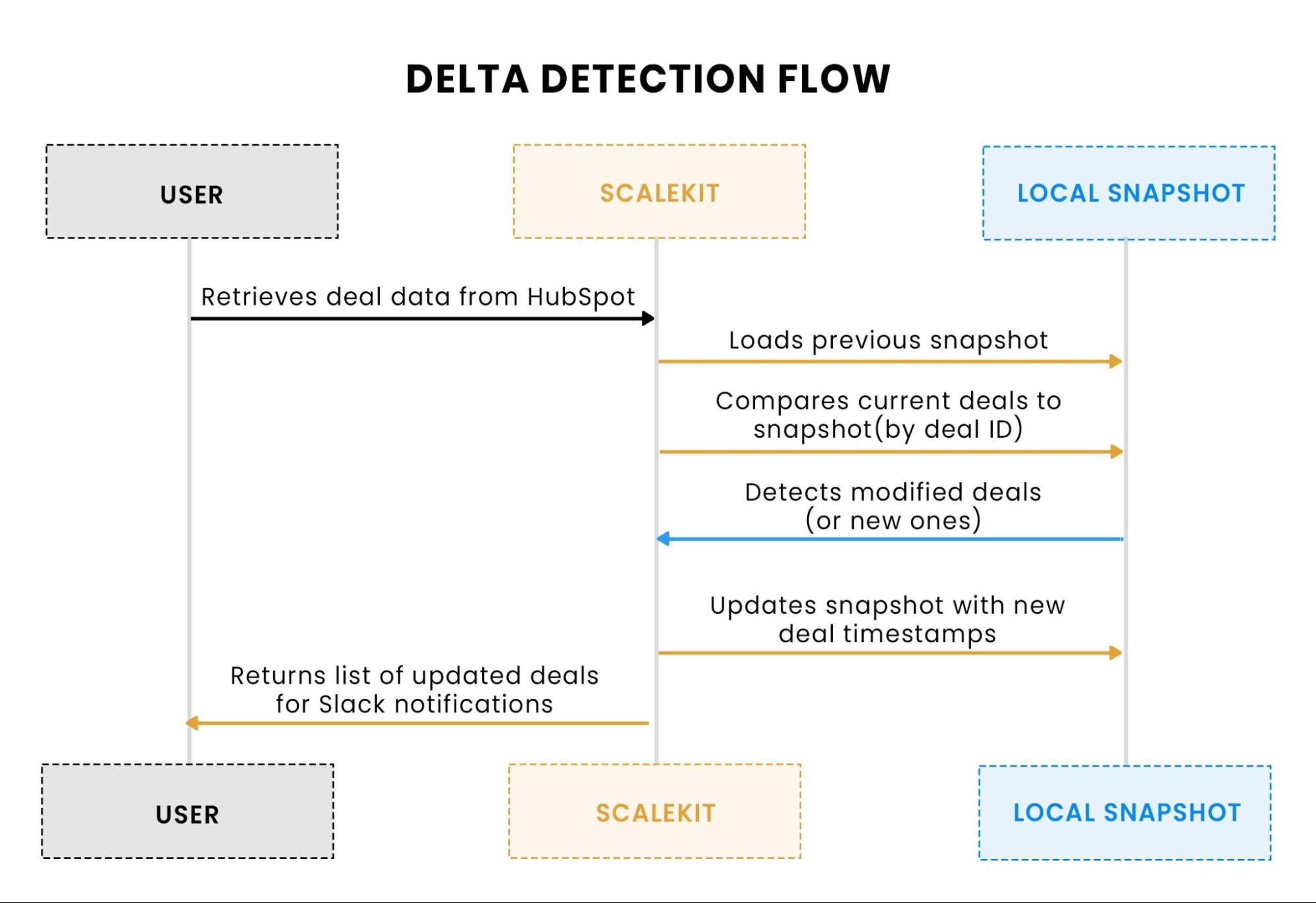
This flow shows the process of delta detection. After fetching the deals, the system compares each deal’s hs_lastmodifieddate against the previous snapshot stored in deal_snapshot.json. It then updates the snapshot with any new or modified deals, ensuring only relevant updates are sent to Slack.
5. Grouping and mapping owners to Slack users
The next step is to group these changes by hubspot_owner_id, which identifies the deal owner. The agent checks the mapping.json file, which maps each HubSpot owner ID to a Slack user ID. This mapping allows the system to send direct messages (DMs) to the relevant sales rep for each deal.
If the DIGEST_CHANNEL_ID is provided, the agent will also aggregate the updates and send a summary to the specified Slack channel. This summary includes:
6. Sending Slack notifications
The final step is sending the updates to Slack. Here, Scalekit simplifies interaction with Slack’s Web API. Using slack_send_message, the system sends DMs for each sales rep with their respective deal updates. It can format messages in plain text, using basic Slack formatting, such as bold for deal names and stage information. The Slack Block Kit can be used here for more advanced formatting, such as organizing information into a more visually appealing structure with buttons, links, and sections.
For the channel summary, the agent creates a concise message with aggregate data (e.g., total updated deals, most critical updates) and posts it to the Slack channel via the Slack Web API.
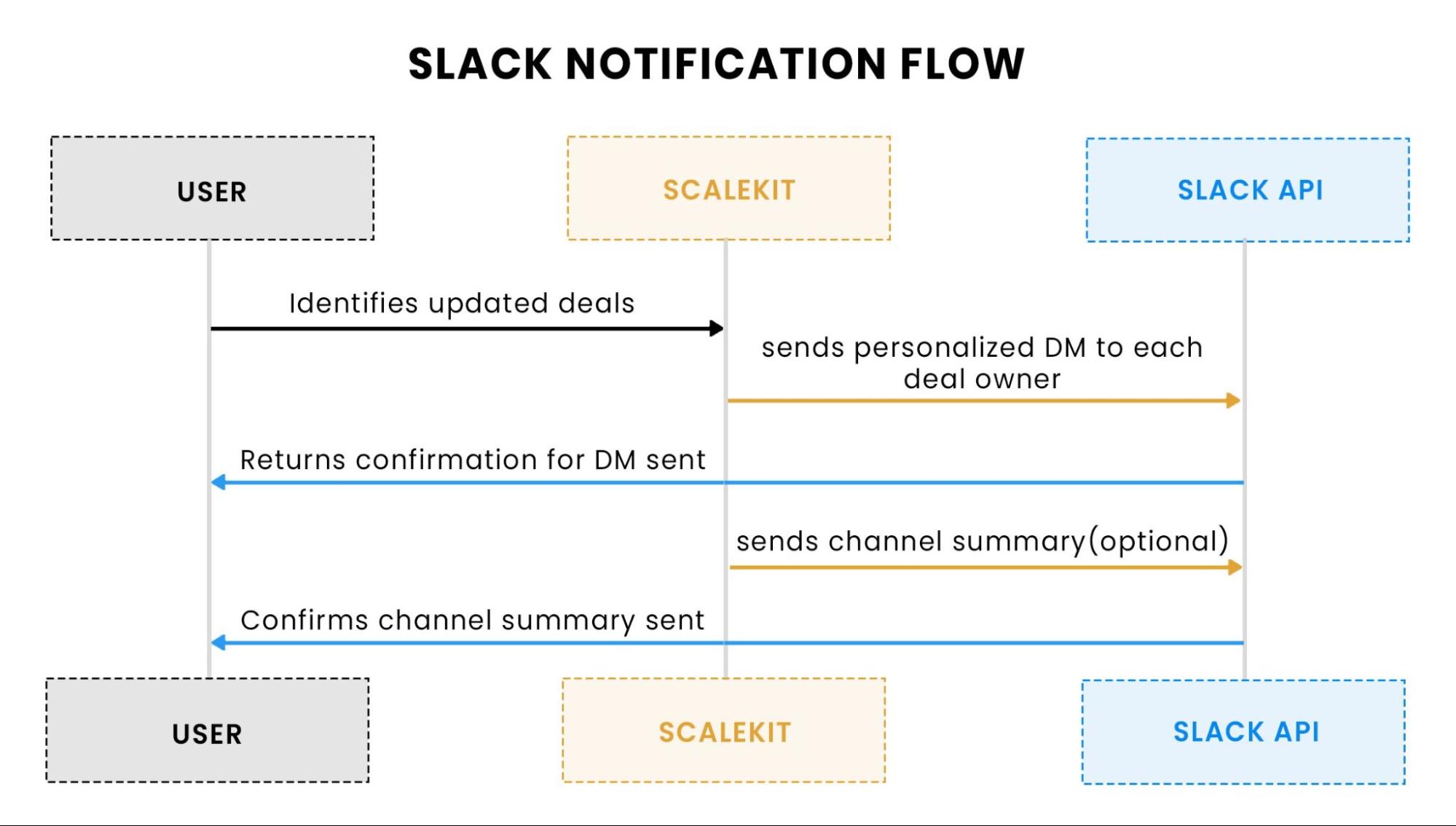
This flow illustrates how the agent sends updates to Slack. First, Scalekit sends personalized Direct Messages (DMs) to the deal owners about updated deals. If channel summaries are enabled, Scalekit aggregates deal updates and posts a concise summary to the designated Slack channel for team-wide visibility.
Scalekit’s primary function in this setup is to manage the connection between the app and both HubSpot and Slack. Here’s how it integrates:
For devs, this approach ensures you’re not reinventing the wheel when working with APIs. Scalekit provides a consistent, retryable interface for both HubSpot and Slack, abstracting out much of the complexity. This allows you to focus on building and fine-tuning the core functionality, whether it’s adding more properties to HubSpot API queries, improving Slack notifications with rich formatting, or fine-tuning the digest scheduling based on your team's needs.
The delta and snapshotting techniques offer a fine balance of performance and accuracy. By sending updates only for changed deals and avoiding redundant notifications, this solution optimizes both API calls and user attention, preventing the dreaded notification overload that often occurs in team collaboration tools like Slack.
In short, the HubSpot to Slack Daily CRM Digest Agent doesn’t just solve the immediate pain of CRM update overload; it builds a scalable, efficient, and highly customizable solution that can be extended for more advanced use cases. And with Scalekit managing your integrations, you can rest easy knowing your API calls are optimized and your data flows smoothly.
Now that we have an understanding of the problem and solution, let's delve deeper into the technical aspects of how the HubSpot → Slack Daily CRM Digest Agent works. As experienced developers, we’ll walk through the core components, APIs involved, and the overall flow in detail, including relevant code snippets for each part of the process.
The project is designed with simplicity and modularity in mind. We use a single Python script to handle most of the logic, while separating configuration, environment variables, and data into separate files for ease of use and maintainability. Below is a quick rundown of the project structure:
This structure is designed to keep things clean and modular, which is crucial for building scalable, maintainable automation solutions.
The integration with HubSpot is the first step in the HubSpot → Slack Daily CRM Digest Agent. It involves fetching updated deal data, filtering it based on modifications, and preparing it for notification. This section will explore how to efficiently query HubSpot for relevant deals, handle pagination, and manage retries for transient errors using Scalekit.
Scalekit acts as the integration backbone between your agent and external APIs like HubSpot and Slack. Its connection model is built on Connections and Connected Accounts, allowing you to authenticate once and reuse those credentials securely through identifiers in your code.
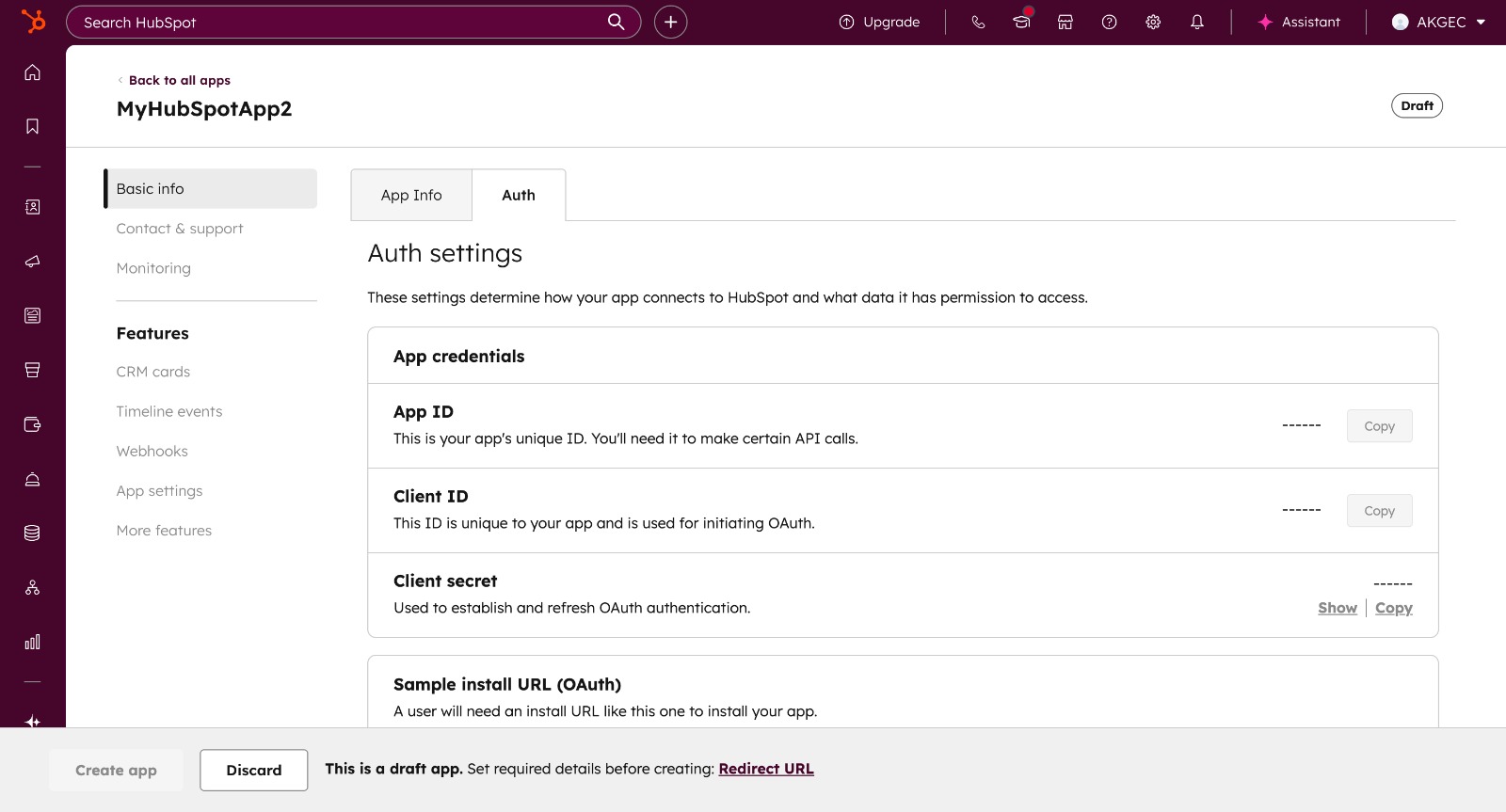
Go to your HubSpot Developer Account → Legacy App → Create Legacy App → Public App.
This generates a Client ID and Client Secret, which uniquely identify your app for OAuth. These values will later be used in Scalekit to authorize HubSpot access.
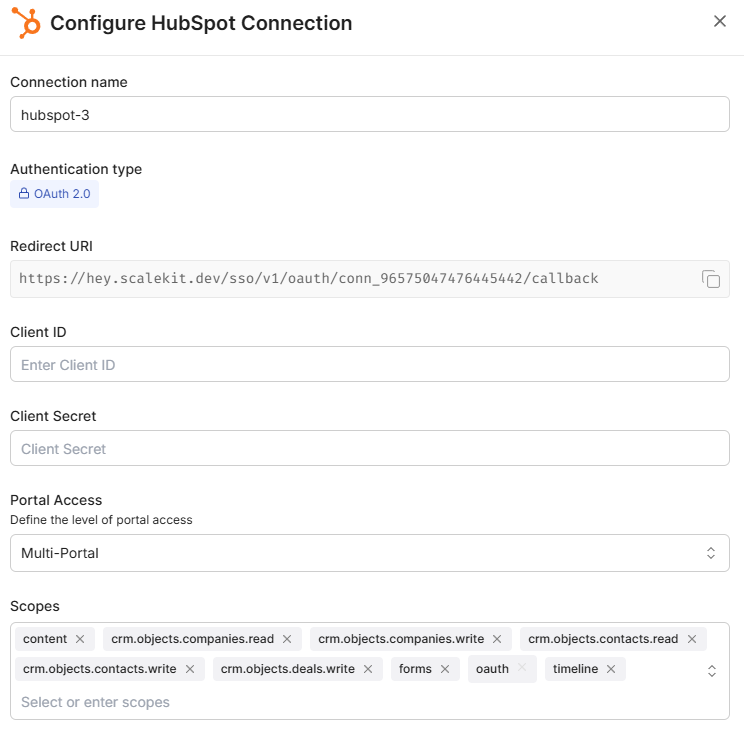
Navigate to Scalekit Dashboard → Agent Actions → Connections → Add Connection → HubSpot.
Enter the Client ID and Client Secret from your HubSpot app. Once connected, verify the status shows Active, this confirms Scalekit can now manage your HubSpot OAuth tokens automatically.
You now have one active HubSpot Connected Account, and Scalekit assigns it a unique HubSpot Identifier to reference from your agent.
Next, install the Scalekit Slack App in your desired workspace.
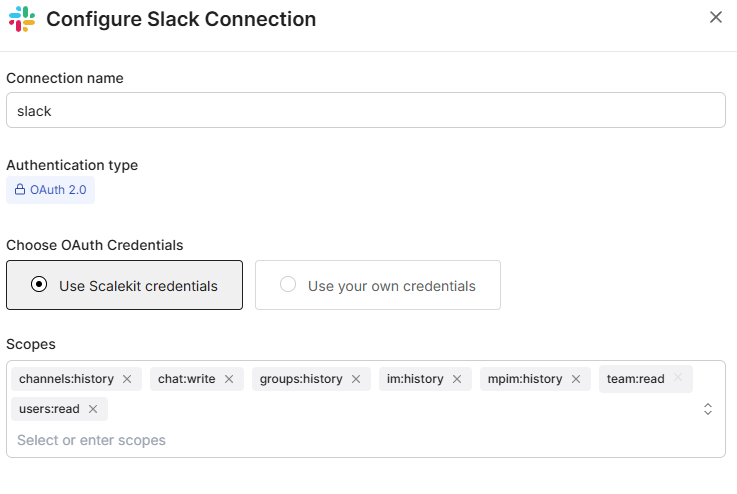
Go to Scalekit Dashboard → Agent Actions → Connections → Add Connection → Slack, and authorize the app.
Scalekit handles all Slack token storage and refresh logic automatically. You now have one Slack Connected Account, linked to a unique Slack Identifier.
To send personalized deal updates via Slack DMs, you’ll need each user’s Slack User ID.
In Slack, right-click a user → Copy Member ID → and store it in the mapping.json file alongside their HubSpot owner ID:
With both connections active, reference them in your .env file:
Your agent now communicates securely with both HubSpot and Slack through Scalekit’s managed identifiers, no manual token handling, refresh logic, or API credential management required.
The agent uses the HubSpot Deals API via Scalekit to fetch deals that were modified within a given time window. Here’s the code to retrieve deals modified in the last 24 hours (using the DIGEST_LOOKBACK_HOURS environment variable):
This call fetches deals based on the hs_lastmodifieddate property, filtering deals modified within the time window defined by DIGEST_LOOKBACK_HOURS.
If there are more than 100 deals, HubSpot’s API paginates results. To fetch all relevant data, we use the paging.next.after cursor to retrieve subsequent pages:
This loop ensures we handle pagination by checking for the paging.next.after cursor, and it continues until all pages are fetched.
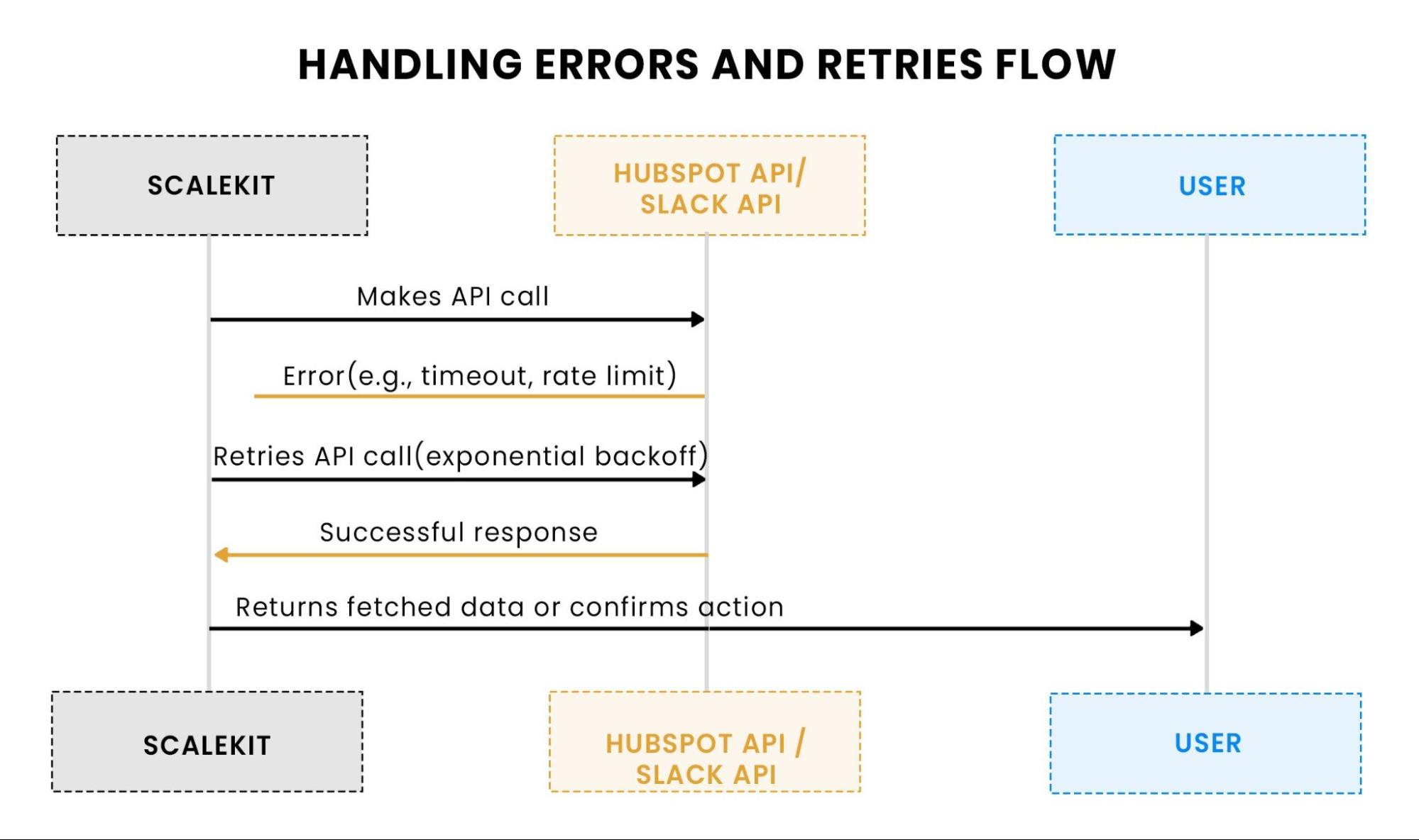
API calls can fail due to issues like timeouts or rate limits. To ensure robustness, we implement a retry mechanism with exponential backoff:
This function automatically retries the request up to three times if a transient error occurs, doubling the backoff time after each attempt.
This flow illustrates retry logic. If an API call fails (due to rate limits or timeouts), Scalekit retries the request with exponential backoff to reduce the frequency of retries. Once the call succeeds, Scalekit returns the data to the user.
At the start of this write-up, we highlighted the struggle of manually tracking HubSpot deal updates. The HubSpot → Slack Daily CRM Digest Agent automates this, starting with the crucial task of fetching deal updates. Here’s how we addressed key challenges:
With the deal data being fetched and handled correctly, the next step is to detect changes and filter out any unnecessary updates. In the following section, we’ll focus on delta detection and how the agent processes deal updates to ensure only the most relevant notifications are sent.
In Part 1, we laid the groundwork by retrieving HubSpot deal data and managing pagination to ensure that we capture all relevant updates. Now, we’ll focus on the next key part of the HubSpot → Slack Daily CRM Digest Agent: delta detection and snapshotting. These mechanisms ensure the system processes only updated or new deals, avoiding unnecessary notifications and keeping the Slack digest relevant and concise.
In this section, we’ll explore the core concepts behind delta detection, how we track changes between runs, and how we store snapshots of deal data to facilitate this process. We’ll also dive into the code that implements these mechanisms, ensuring the agent operates efficiently while minimizing redundant notifications.
The goal of delta detection is simple: only process the changes. Instead of reprocessing all deals every time the agent runs, we want to track only those deals that have been modified. This is where the concept of a "snapshot" comes in.
A snapshot is a record of the deals and their last-modified timestamps processed in a previous run. By comparing the current state of the deals with the previous snapshot, we can detect which deals have been updated and need to be included in the Slack digest.
The main steps involved in delta detection are:
This method ensures we send notifications only for deals that have actually changed, reducing noise and making the system more efficient.
To keep track of deal modifications between runs, we need a way to store the deal ID and its last modified timestamp. This data is saved in a local file, deal_snapshot.json, which we’ll load at the start of each execution and update at the end.
Here’s the code for loading the snapshot and saving the updated snapshot:
The snapshot file stores data in a simple key-value format, where the deal ID is the key and the hs_lastmodifieddate is the value:
Each deal’s timestamp is stored in ISO 8601 format, ensuring consistency when comparing with the current state of the deals.
Now that we have the previous snapshot loaded, we can compare the current list of deals against it to detect any changes. If a deal’s timestamp has changed or if it’s a new deal (i.e., not in the snapshot), we mark it as updated.
Here’s the code for delta detection:
This ensures that only modified or new deals are sent out in the Slack digest, reducing noise and ensuring that the notifications are relevant.
Let’s say the snapshot file looks like this:
And the current run fetches the following deals:
When detect_changes is executed, the following happens:
Thus, the updated deals will include deal_12345 and deal_54321.
Now that we’ve tackled delta detection and snapshotting, the system can efficiently track deal changes across runs and process only relevant updates. Here’s how the solution addresses the challenge of dealing with constant deal modifications:
With this mechanism in place, the next step is to send the updates to Slack, where we’ll format and deliver the notifications. In the next part, we’ll dive into how we integrate Slack messaging to deliver the digest in a clean, actionable format.
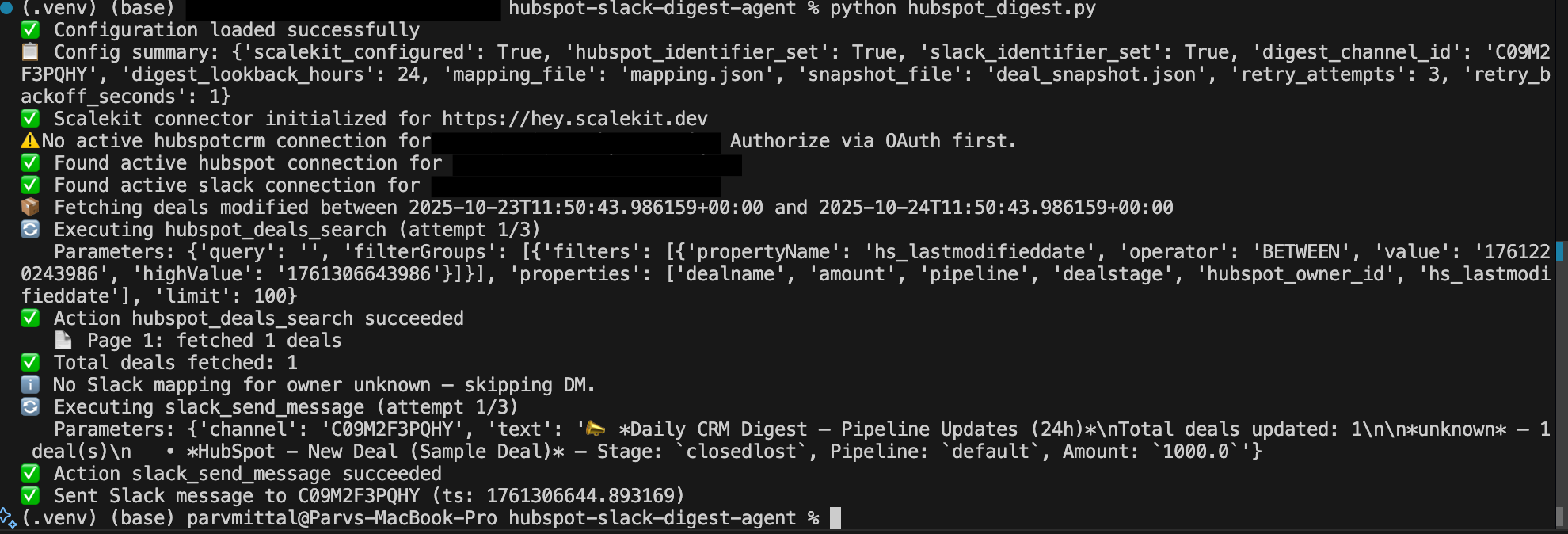
Now that we’ve tackled delta detection and snapshotting, it’s time to focus on how the HubSpot → Slack Daily CRM Digest Agent sends notifications to Slack. This part is crucial, as it’s the final step where the relevant updates are delivered to the sales team.
In this section, we will explore how to send direct messages (DMs) to deal owners in Slack, format the messages, and, optionally, post a channel summary to keep the entire team aligned. We’ll also dive into how Scalekit handles Slack API interactions, making it easier to send these messages while ensuring the system remains efficient and reliable.
Much like the HubSpot integration, the Slack API interaction is abstracted using Scalekit, which manages authentication and API requests for us. This simplifies the process and eliminates the need to handle Slack OAuth tokens manually.
You’ll need to configure your Slack integration in the .env file by setting the Slack identifier:
SLACK_IDENTIFIER=your_slack_identifier
Scalekit will then handle the connection and authentication with the Slack API.
Once we’ve detected the changes and identified the deal owners, the next step is to send them notifications. For each owner, we send a Slack Direct Message (DM) with details about the updated deals.
We use the Slack Web API (via Scalekit) to send messages to specific users. The Slack DMs use basic text formatting, such as bold for important fields and code-like formatting for deal-related data (e.g., deal stages or amounts).
Here’s the code that sends a DM to the deal owner:
Slack messages can be formatted using simple markdown syntax. Here, we’ll format the deal information so it’s both readable and actionable for the sales team.
Let’s look at an example of formatting a message for a Slack DM:
This method:
Here’s how the output would look in Slack:
*Deal Name:* Deal 123
*Amount:* $5000
*Stage:* Negotiation
*Pipeline:* Sales Pipeline
*Last Modified:* 2025-10-23T08:45:00Z
This structure ensures that the sales rep can quickly review the updated deal and take necessary actions without having to dig through HubSpot manually.
In addition to sending personalized DMs, we can also send a channel summary to a designated Slack channel. This is particularly useful if you want the entire sales team to stay up to date on the latest deal changes. The summary aggregates updates by deal owner and includes information on the total number of deals updated and the most critical ones.
To send the channel summary, we first aggregate the deals by owner, then create a concise summary message that is sent to the designated channel.
Here’s the code to generate and send the channel summary:
This summary message will look something like this in Slack:
*Deal Update Summary:*
*Owner 1234:*
- Deal 1 (Stage: Negotiation)
- Deal 2 (Stage: Proposal)
- Deal 3 (Stage: Closed)
*Owner 5678:*
- Deal 4 (Stage: Closed)
- Deal 5 (Stage: Proposal)
- Deal 6 (Stage: Negotiation)
This summary is especially useful for team leads and managers who want an overview of the team’s activities without having to go through each deal individually.
When working with Slack’s API, we need to be mindful of rate limits to avoid exceeding Slack’s maximum requests per minute. Scalekit handles most of the rate limiting for us, but if you find yourself hitting the rate limit, you can implement a backoff strategy.
To handle rate limits effectively, you can use a retry mechanism like this:
This retry logic ensures the script waits for the appropriate backoff period before retrying, reducing the risk of hitting Slack's rate limits.
At this point, we’ve covered how the agent integrates with Slack to send personalized updates to sales reps and a summary to a team channel. Here’s how this part addresses the challenge we discussed earlier:
In the next part, we’ll explore how to automate the entire process, allowing you to schedule the agent to run regularly and ensure your sales team always has up-to-date deal information without manual intervention.
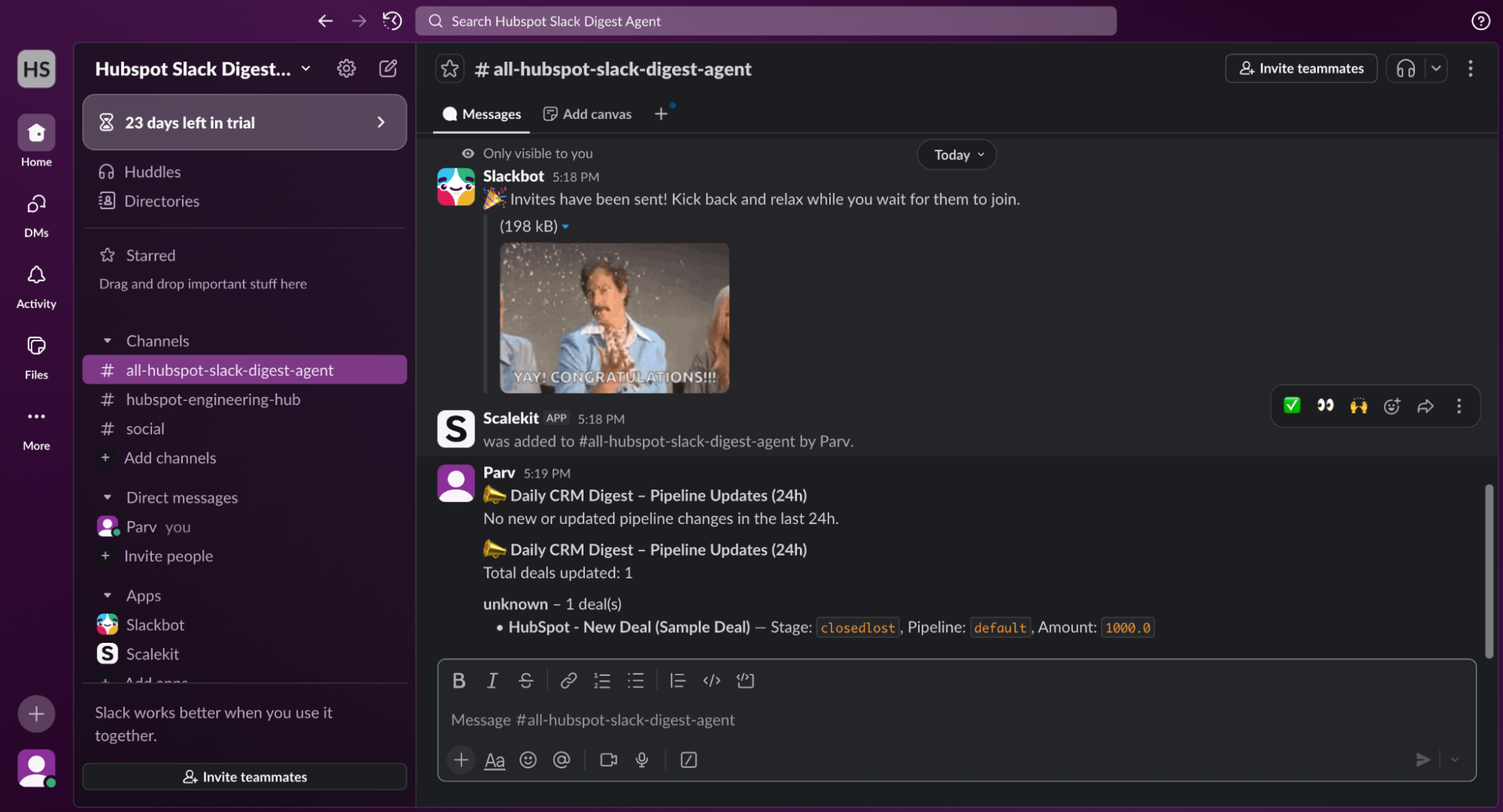
Now that we’ve covered the essentials of HubSpot API integration, delta detection, and Slack notifications, the next critical step is automation. The goal is to ensure that the HubSpot → Slack Daily CRM Digest Agent runs regularly, fetches updates, processes them, and sends notifications without requiring manual intervention.
In this section, we’ll explore how to automate the agent using task schedulers and cron jobs. We’ll also discuss logging, error handling, and how to ensure that the agent runs smoothly in a production environment.
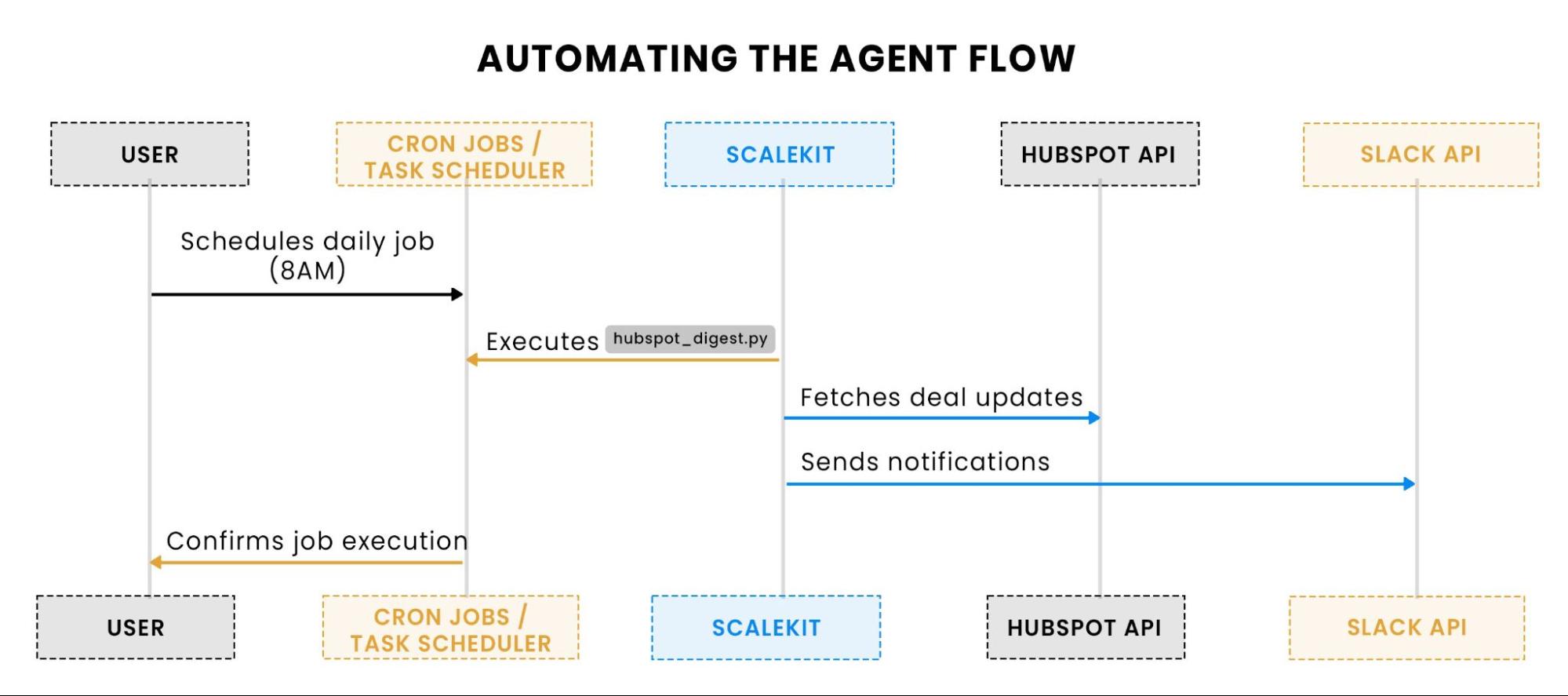
This flowchart explains how automation works. The user schedules the agent to run at a specified time (e.g., 8 AM) using cron or Task Scheduler. Once triggered, the agent fetches deal updates and sends notifications to Slack without requiring manual intervention.
The agent should be automated to run daily (or at whatever interval is required), fetching updated deals and sending Slack notifications without manual input. There are two main ways to automate this process based on your operating system:
Cron jobs are an excellent way to schedule tasks on Unix-based systems. Here’s how you can set up a cron job to run the agent at a specific time, such as every morning at 8:00 AM.
Open the crontab editor: Run the following command in your terminal:
1. Add a cron job entry: This will run the agent every day at 8:00 AM:
0 8 * * * /path/to/your/python3 /path/to/your/hubspot_digest.py
2. This cron expression means:
a. 0 8: Run at 8:00 AM.
b. * * *: Run every day of the month, every month, and every day of the week.
c. /path/to/your/python3: The path to the Python 3 executable.
d. /path/to/your/hubspot_digest.py: The path to the hubspot_digest.py script.
3. After saving this file, the cron job will automatically run the agent daily at 8:00 AM.
Windows users can use Task Scheduler to automate the process. Here’s how to set it up:
When automating a process like this, logging is essential to track its execution, monitor for errors, and diagnose issues. Let’s add basic logging to ensure we can monitor how the agent is performing.
Python’s logging module is a simple and effective way to log messages in a structured format. Here’s an example of how to set up logging in hubspot_digest.py:
In this configuration:
You can use logging.debug(), logging.info(), logging.warning(), and other logging levels throughout your script to log specific events.
For example, inside the deal fetching loop, you could add:
This would log how many deals were retrieved in each execution, helping you monitor the agent’s behavior.
In addition to basic logging, you may want to notify someone (e.g., via email or Slack) if an error occurs during execution. This is especially important in production environments where manual monitoring isn’t feasible.
For example, if there’s an error in connecting to HubSpot or Slack, you could send an alert to Slack:
You can call this function within the agent's except blocks to send a notification if an exception occurs.
For example, after a failed API call:
This will log the error and send an immediate notification to the admin channel on Slack, ensuring that you’re notified of issues as they arise.
The current design is sufficient for smaller to medium-sized teams, but for large teams with thousands of deals, performance could become a concern. Here are some ways to scale the agent:
At this point, we’ve covered automating the HubSpot → Slack Daily CRM Digest Agent, ensuring it runs smoothly and reliably without manual intervention. Here's how we addressed the key aspects of automation:
With the automation in place, the agent now runs without manual input, fetching the latest deal updates, detecting changes, and delivering them to Slack, streamlining your team’s workflow.
In this guide, you’ve learned how to build a fully automated HubSpot → Slack Daily CRM Digest Agent that helps your sales team stay up to date with the latest deal updates directly in Slack. We’ve covered everything from integrating the HubSpot CRM API to fetching deal updates, tracking changes using delta windows and snapshotting, formatting Slack notifications, and automating the entire process using cron jobs or Task Scheduler. This solution streamlines communication within your sales team and ensures that they are always aligned on the most important deal activities.
By following these steps, you’ve created a system that:
Now that you’ve set up this automated solution, the next steps depend on your team’s needs. You could further enhance your system by exploring Slack Block Kit for richer formatting, integrating HubSpot Webhooks for real-time notifications, or scaling the solution to handle larger datasets.
If you’re interested in diving deeper into Scalekit and exploring more ways to integrate HubSpot or Slack with other tools in your workflow, check out Scalekit’s documentation for further guides and use cases. If you'd like to take your integration skills further, be sure to explore automated API workflows and how to scale them effectively.
How does Scalekit simplify API integrations with HubSpot and Slack?
Scalekit abstracts the complexities of API authentication, rate limiting, and error handling for both HubSpot and Slack. With Scalekit, you can connect these platforms using OAuth credentials without manually managing tokens or API requests, streamlining the setup and making the integration process more efficient and reliable.
How does Scalekit handle retries and error management in API calls?
Scalekit automatically retries failed API requests using exponential backoff for transient errors such as rate limits or network timeouts. This ensures reliable data fetching from HubSpot and message delivery to Slack, minimizing downtime and the need for manual intervention.
How can I track changes in HubSpot deals without polling the API regularly?
You can leverage HubSpot Webhooks to receive real-time notifications about deal updates, eliminating the need for periodic polling. Webhooks can notify your system immediately when a deal’s status or properties change, making the process more efficient and responsive.
Can I extend the HubSpot → Slack digest to support multiple HubSpot accounts or workspaces?
Yes, by parameterizing identifiers and mapping files, you can extend the digest agent to support multiple HubSpot accounts or Slack workspaces. This approach allows you to centralize notifications for teams working in different environments without significant changes to the core system.
How can I scale this solution if I have a large number of deals or sales reps?
To scale the solution, consider optimizing the HubSpot API calls by increasing pagination limits, using asynchronous processing (e.g., asyncio), or implementing parallel API requests to handle multiple pages of data. Additionally, batching Slack messages can reduce the load, especially when sending updates to many sales reps.